

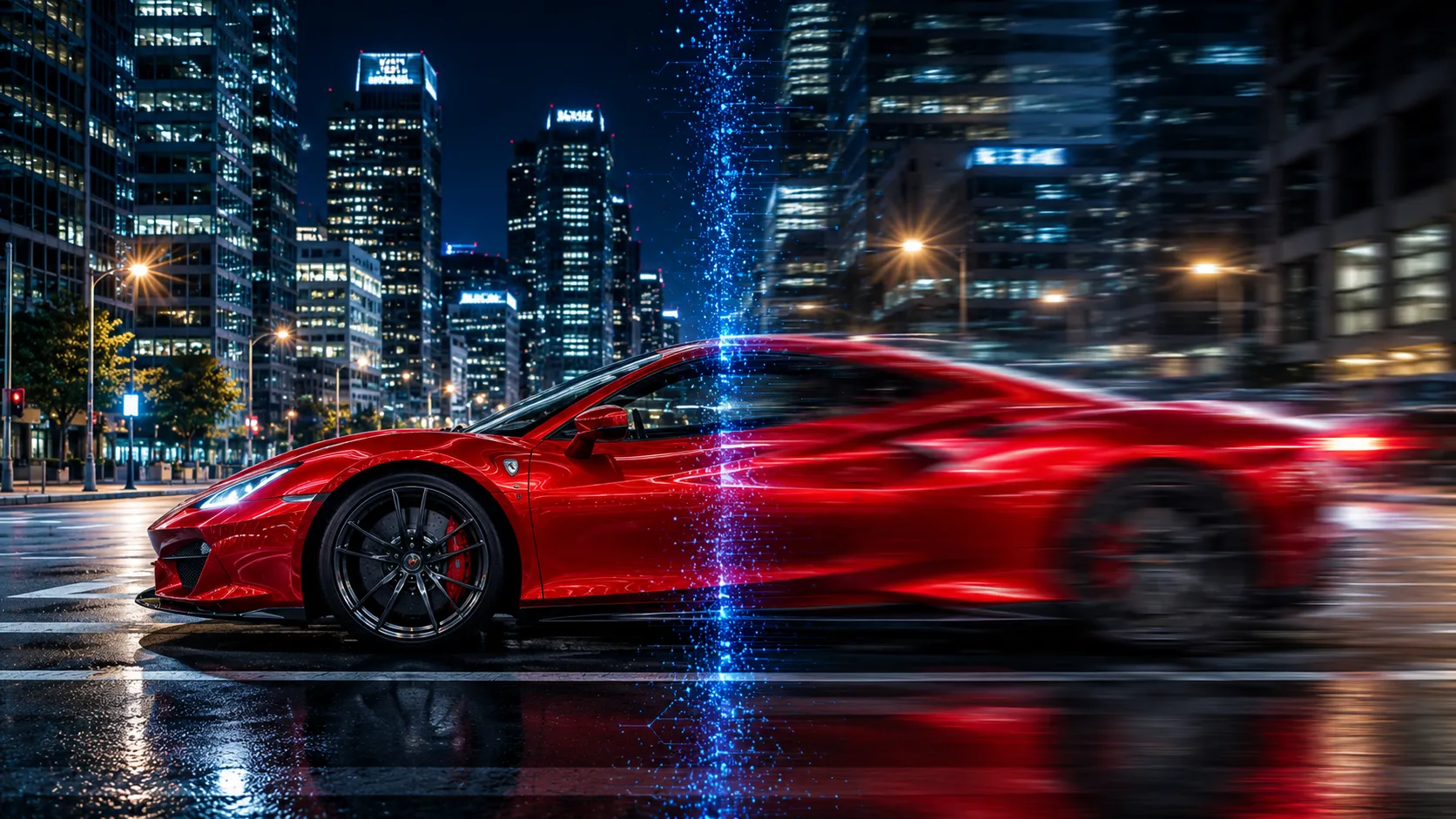
Everything Is Sharp… Maybe Even Too Sharp!
Have you played around with the AI Motion Blur Plugin by aescripts at all? Imagine you’ve just filmed an action scene or rendered an animation. Everything looks great—until you play the video. Suddenly, you notice that the motion feels too sharp and rigid, as if every frame is completely disconnected from the next. That smooth, natural sense of movement is simply missing.
This usually happens when a video has been recorded or rendered without Motion Blur—a common issue, especially in sports footage, time-lapses, and 3D renders.
In these situations, you generally have only two options: either re-render the entire project and spend a significant amount of time doing so, or try to simulate Motion Blur using various effects and techniques—an approach that doesn’t always produce natural or convincing results. Fortunately, modern AI-powered tools have made this process much easier and can restore natural-looking motion to your videos with just a few clicks.

What Exactly Is Motion Blur, and Why Is It So Important?
Motion Blur is the natural blur that occurs when a subject or camera moves quickly in the real world. Our eyes are accustomed to seeing this type of blur, which is why videos without it often appear unnatural and overly digital.
In motion graphics, video editing, and even 3D rendering, Motion Blur plays a crucial role. It makes object movement appear smoother, enhances the perception of speed, and ultimately gives the entire project a more professional look.
Imagine a car speeding past the camera. Without any Motion Blur, its movement looks stiff and almost stop-motion-like. But by adding the right amount of motion blur, the exact same shot instantly becomes more natural and cinematic.
What Are the Different Ways to Create Motion Blur?
Fortunately, you don’t necessarily need third-party plugins to add Motion Blur. Editing and 3D software have included built-in tools for this purpose for years, and many projects are still created using these native solutions.
Some of the most common methods include:
- Enabling the built-in Motion Blur in After Effects, which works well for animated layers and motion graphics.
- Using the Pixel Motion Blur effect to simulate motion blur on live-action footage.
- Enabling Motion Blur during rendering in Blender, Cinema 4D, and other 3D applications.
- Using Frame Blending to smooth certain types of motion and time-lapses.
In fact, if you have enough time, Motion Blur can be achieved in most projects without using any plugins.
But Why Do So Many People Choose Other Methods?
The problem is that these approaches aren’t always fast or convenient. For example, enabling Motion Blur in 3D renders can dramatically increase render times, which can be extremely frustrating on heavy projects. On the other hand, effects like Pixel Motion Blur don’t always produce perfectly natural results on certain types of live-action footage—especially in busy scenes or fast-moving shots—and can sometimes introduce artifacts or visual errors. That’s why many editors and motion designers prefer smarter tools that are both faster and more accurate in complex situations.
AI Motion Blur: When Artificial Intelligence Joins the Game 🚀
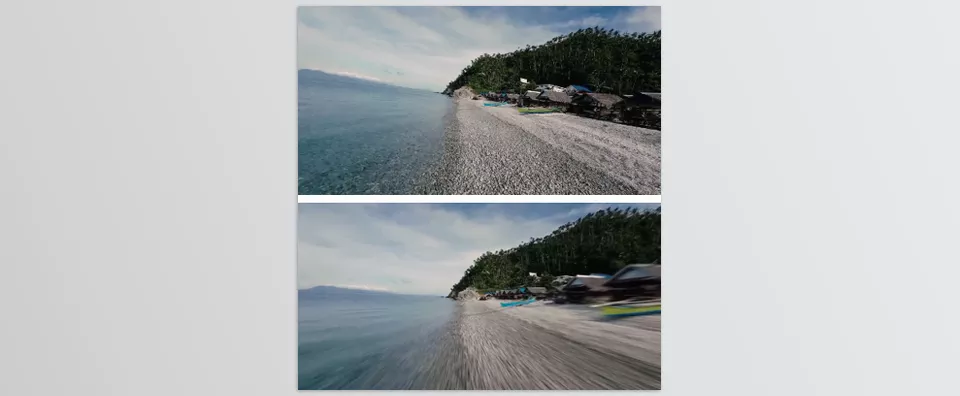
AI Motion Blur is an AI-powered plugin designed to analyze motion within videos and generate accurate, natural-looking Motion Blur based on that movement. What makes this tool different is that it doesn’t simply apply a basic blur effect over the image. Instead, it actually analyzes the image in detail, determining how every part of the frame is moving and in which direction.
In practice, this means that instead of applying one uniform blur, each pixel is blurred according to its own motion. As a result, the final output looks significantly more natural and genuinely restores the footage’s cinematic feel rather than simply adding a superficial effect.
Key Features of AI Motion Blur
🎥 Add Motion Blur to Real Footage
One of the primary uses of this plugin is enhancing real-world footage, especially videos recorded with high shutter speeds. In these situations, the high shutter speed captures images that are extremely sharp, making motion appear rigid.
AI Motion Blur solves this problem by analyzing subject movement and applying an appropriate amount of blur to each part of the image. For example, if a moving car is in the shot, its wheels and body receive separate, natural-looking blur rather than one flat, artificial effect.
✨ Make Videos More Cinematic
Many modern cameras—especially smartphones—produce extremely clean and sharp images thanks to advanced digital processing. While this high level of sharpness is impressive, it can also make videos feel overly digital.
By adding properly balanced Motion Blur, the footage appears smoother and regains the cinematic quality we’re naturally accustomed to seeing. In other words, this plugin helps bridge the gap between digital-looking footage and the feel of real film.
⏱ Smooth Out Time-Lapses
Time-lapses are naturally made up of separate frames, which can sometimes make their movement appear jumpy or disconnected. This becomes especially noticeable when the camera remains stationary while only time is accelerated.
AI Motion Blur reduces these abrupt transitions by adding blur between frames, making motion appear smoother and more continuous. Instead of looking like a sequence of individual images, the time-lapse becomes a seamless visual flow.
🎨 Ideal for Motion Graphics and 3D Renders
This plugin isn’t limited to live-action footage—it also works extremely well in motion graphics. For example, when an animation created in After Effects is rendered without Motion Blur, the final output often appears flat and artificial.
Likewise, in 3D renders created with Blender or Cinema 4D, if Motion Blur wasn’t enabled during rendering (or was disabled to reduce render times), this plugin can recreate that natural sense of movement afterward. It even performs well on abstract animations, giving motion greater depth.
⚙️ Full Control Over the Effect Strength
Another major advantage of this tool is its flexibility. You can fine-tune the Motion Blur intensity with subtle adjustments for a natural look, or increase it to emphasize speed and movement.
This level of control makes the plugin much more than a simple preset effect. Instead, it becomes a creative tool that can be used in many different ways depending on your project’s style—from clean commercial work to fast-paced action sequences.
Ultimately, AI Motion Blur offers a fast and intelligent solution for one of the most important visual details in video production: Motion Blur itself. Instead of re-rendering projects or struggling with complicated and time-consuming settings, this plugin lets you restore smooth, natural, cinematic movement in just a few clicks. It’s especially valuable when speed matters or when you want high-quality results without sacrificing efficiency.

Tips for Getting the Best Results with AI Motion Blur 👌
Now that you’re familiar with the plugin’s capabilities, here are a few tips to help you achieve even more natural, professional-looking results. These are the kinds of practices that prove especially valuable in real-world projects and can noticeably improve your final output.
- 🎯 Control the Blur Intensity Carefully
Avoid applying excessive Motion Blur. In most cases, subtle amounts look much more natural and create a stronger cinematic feel without degrading the image. - 🧹 Clean Your Footage Before Applying the Effect
If your video contains noticeable noise, it’s a good idea to perform basic noise reduction first. Excessive noise can interfere with motion analysis and make the final result appear messy. - ⏱ Use Moderate Settings for Time-Lapses
For time-lapse footage, moderate settings usually produce the best results. Applying excessive blur can obscure important image details and make the output look artificial. - 👀 Check Busy Scenes Before the Final Export
In scenes with multiple moving subjects or overlapping motion, always review the footage carefully before your final export to ensure the Motion Blur has been applied naturally. - 🔁 Apply It to Older Projects
One of the plugin’s biggest advantages is that it can also be used on projects you’ve already rendered. There’s no need to re-render the entire project just to add Motion Blur afterward.
Ultimately, when used properly and with attention to detail, AI Motion Blur can refine the subtle elements that often make the difference between an average result and a truly professional production.
Small Details That Truly Make the Difference ✨
If we’re being realistic, what often makes a project feel truly professional isn’t necessarily the big idea or even the rendering quality—it’s the small details that might not stand out at first glance. Motion Blur is one of those details. Without it, even a well-made video can appear stiff and artificial. With it, the entire image feels more natural and alive.
This is exactly where AI Motion Blur fills the gap. Instead of dealing with lengthy renders, complicated settings, or time-consuming workflows, you can give your motion a truly natural and cinematic feel with minimal effort. This becomes especially valuable when working with live-action footage, time-lapses, or even 3D animations, and you want your final output to stand out.
In the end, if you work with video on a regular basis, you’ll quickly realize that this tool is far more than just another effect. It’s more like an essential step in post-production—one that makes your final output feel complete, more cohesive, smoother, and noticeably more professional.
Want to get better at After Effects without wasting hours on complicated tutorials? Our After Effects Tools guide explains the most useful tools in a simple and practical way that actually helps improve your workflow. Check out the guide today and start creating faster, smoother, and more efficiently.



