

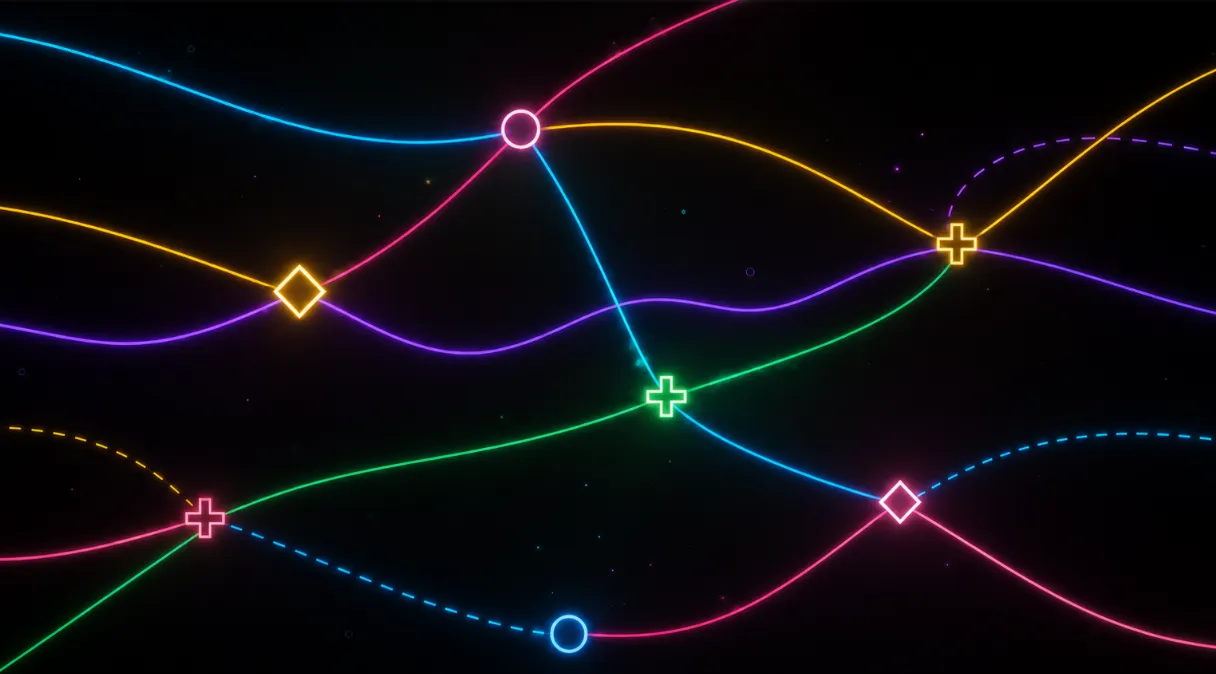
When Two Paths Meet, That’s When the Trouble Really Starts! 🎯
Have you ever created anything using the Find Intersections Plugin by aescripts? Imagine you have several animated lines and paths constantly moving across the screen, with the possibility of crossing each other at any moment. Now you want a circle, icon, light, or any other graphic element to appear exactly at every intersection. It’s a very appealing idea, but executing it accurately can quickly turn a simple task into a real headache.
The main challenge is that the intersection point is constantly moving. With the slightest change in the path or position of the lines, the intersection moves as well, and if you have multiple Paths, you need to keep track of many points at the same time. That means something that looks correct in one frame might be completely displaced just a few frames later.
Things get even more complicated when Shape Operators like Trim Paths, Repeater, or Merge Paths come into play, because these tools change the final shape of the path at render time. This is where finding the exact intersection point and keeping an element attached to it is no longer just a matter of a few simple Keyframes and can require a lot of calculations and manual adjustments.

What Exactly Are Path Intersections Used For? 🔗
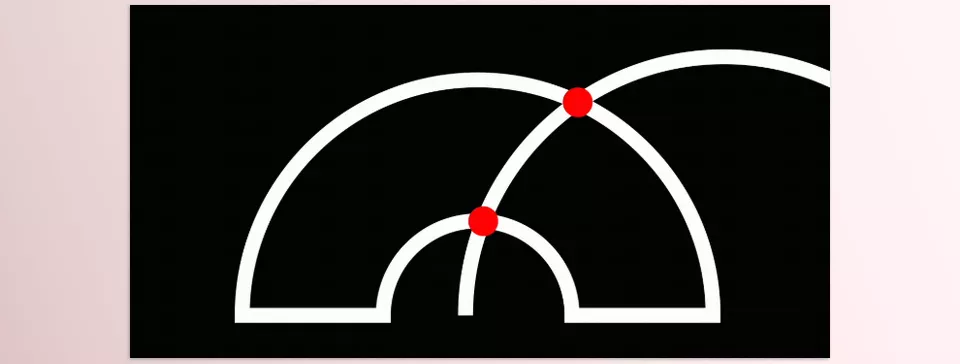
An Intersection is a point where two or more paths cross each other. In motion graphics, this point can be much more than just a simple crossing point; it can become a Node, Marker, icon, glowing point, or a position for placing an object.
For example, in an infographic, several information lines from different sections may enter a central point. You can use the intersection of the lines to display a Node. Or, in an abstract animation, lines moving across the screen can create a colored point every time they cross.
You can even use this idea to create animated networks, diagrams, Line Animations, graphic maps, and geometric motion designs. The important point is that if the intersections update along with the movement of the Paths, you no longer need to create separate keyframes for every single one of these events.
Common Methods for Finding Intersections 🛠️
Before specialized tools, achieving this kind of result required using a combination of After Effects’ built-in features. To create and animate paths, you can use Shape Layers, Bezier Paths, and Masks, while tools like Trim Paths can control the shape and movement of those paths. If you want to change an element’s position based on the paths, Keyframe Animation and Expressions come into play.
Depending on the type of project, these methods are commonly used:
- Keyframe Animation: For manually defining the position and movement of elements at specific points.
- Expressions: For calculating positions and creating automatic relationships between different Properties.
- Shape Layer and Bezier Path: For creating animatable paths and precisely controlling the shape of lines.
- Mask Path: For using existing paths on different layers.
- Trim Paths: For creating animations in which paths gradually appear or become shorter.
The Trouble Starts When the Number of Paths Increases 😵
Manual methods can work perfectly well for one or two simple Paths, but as the number of paths increases, finding every individual intersection and keeping elements aligned with them becomes difficult. On top of that, the intersection point isn’t fixed and constantly changes as the Paths move, so you need to keep correcting positions or create more complex Expressions to calculate them. If Shape Operators such as Repeater, Merge Paths, or Trim Paths also modify the final shape of the path, calculating the actual intersection becomes even more complicated, and manual control can quickly become time-consuming and error-prone.
Find Intersections: It Finds the Intersections for You 🎯
Find Intersections for After Effects is a specialized tool for finding intersection points between animated paths, but its functionality doesn’t stop at simply “finding a point.” This plugin can calculate the location of every intersection in the Artwork on every frame and then place any Layer you select exactly on those points. So if the lines and paths move throughout the animation, the intersections are tracked Live, and the elements placed on them move along with them.
The initial setup is also designed to be very simple. You apply the effect to the Artwork, and Use All Paths is enabled by default, meaning the plugin automatically checks all available Paths and finds their intersections. If you don’t want every path included in the calculations, you can select specific Paths instead. You don’t even need to prepare the project using Parenting or different Expressions; selecting the Layers is essentially the main part of the Setup.
Intersection Calculation Based on the Actual Path Geometry
The important thing is that Find Intersections doesn’t simply look for a few approximate points on the image. The plugin calculates intersections based on the actual geometry of Bezier Paths, and according to the developer, these calculations are performed with Sub-Pixel accuracy and take only a few milliseconds per frame.
This is especially important in animations where paths are constantly changing shape or moving, because the intersection point needs to be recalculated every frame so the element placed on it doesn’t detach from the path.
It Even Sees the Results of Shape Operators
One of the important features of Find Intersections is that it isn’t limited to raw Paths. Many Shape Layer Operators can modify the shape of a path at Render time, something that can make intersection calculations more complicated with conventional methods. This plugin can also account for the final result of these modifications in its calculations.
Supported Operators include:
- Trim Paths: For paths whose length or visible section changes over time.
- Repeater: For situations where a Path is repeated multiple times and the result contains several similar paths.
- Merge Paths: For combining or creating geometric changes between Paths.
- Offset Paths: For creating a version with a distance or Offset relative to the original path.
- Round Corners: For rounding the corners of a path and changing its geometry.
- Zig Zag: For transforming a path into a zigzag form and creating new intersections.
- Pucker & Bloat: For changing the Path’s shape inward or outward.
- Twist: For twisting and deforming the path.
In practice, if one of these Operators has modified the path, the plugin uses the final shape you see on the screen as the basis for finding the Intersection, rather than examining only the original Path. According to the developer, all of these are supported except Wiggle.
Paths Can Come from Multiple Different Layers
Another strength of the tool is that you don’t have to collect all your paths inside a single Shape Layer. You can include Paths located in different parts of the Composition in the same calculations.
For example, you can simultaneously use:
- Mask Path on a Solid
- Shape Path on a Shape Layer
- Parametric Shapes such as Ellipse
- Rectangle
- Polystar
You can even select Paths from different Layers and let the plugin find the intersections between them. Each Layer’s Transform is also taken into account automatically, so if a path on a Layer moves or Rotates, the intersection calculations automatically adapt to that change.
Every Intersection Can Have a New Element ✨
This is where finding an Intersection really becomes a motion design tool. Find Intersections lets you select up to 5 Layers to place at intersection points.
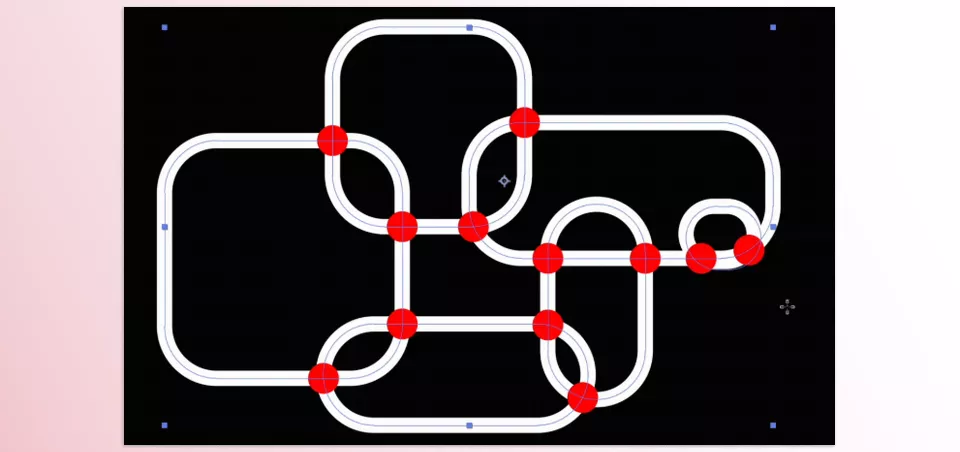
Suppose you have several animated lines and want every crossing point marked with a circle. Simply give the circle Layer to the plugin, and whenever it finds an intersection, it will place the circle exactly at that point. This Layer can be a Shape, icon, Marker, or any other graphic element you have in the Composition.
With multiple Layers, you can also specify whether elements should be placed on intersections in sequence or selected randomly. In Random mode, you can also use a Seed to control the selection order and change the Randomization whenever you need a different result.
Element Size Is Also Controllable
After the Layers are placed on the intersections, their size remains controllable as well. You have access to a Scale Slider that allows you to adjust the size of the elements placed on the intersection points.
This feature is important for projects with a large number of Intersections, because you can control the size of all Instances placed on the intersections at once without changing each Layer individually.
Rotation Based on the Intersection Itself 🔄
Find Intersections doesn’t just control the position of elements; it can also adjust their Rotation based on the paths. This means an object placed on an Intersection can rotate according to the geometric direction of the intersection.
Several Rotation modes are available:
- Crossing Bisector: Orientation based on the bisector of the angle created where the Paths intersect.
- Fixed: The element always remains at a fixed angle.
- Random: The orientation of the elements changes randomly.
- Path Direction: The element rotates based on the direction of the Path.
For example, if you use an arrow, line, icon, or another directional Element instead of a simple Dot, this feature can help keep the element aligned with the structure of the paths at different points.
Self-Intersection Hasn’t Been Forgotten Either
An intersection doesn’t necessarily mean two different Paths crossing each other. Sometimes a complex path crosses itself; for example, a Curve may loop around and cross another section of itself. Find Intersections can detect these Self-Intersections as well.
This feature is useful for complex paths, abstract designs, and animations where a Path loops back over itself, allowing you to use these points in the design just like intersections between multiple paths.
If You Don’t Want Layers, Just Display the Points
You don’t always need to place a separate object on every intersection. If you only want to see the crossing points as Markers, Dots Mode is a suitable option. In this mode, the Intersections are displayed as clean points, and you can control their appearance and color.
This mode is useful when you want to inspect the intersection points first or use the points themselves as part of the design without creating a separate Layer for each one.
Multiple Plugin Instances on a Single Layer
Find Intersections is also Stackable, meaning you can chain multiple Instances of the effect on a single Layer. This is useful when you want to control several sets of Paths or different behaviors within one Composition without limiting everything to a single Instance.
Using It on an Adjustment Layer Without Damaging the Artwork
The plugin is also compatible with Adjustment Layers. This means you don’t necessarily have to apply the effect directly to the original Artwork. You can place it above the desired set of Layers and keep the project structure Non-Destructive.
This approach is especially helpful in complex Compositions because it keeps the file structure more organized and separates effect control from the Artwork itself.
Grow Bounds for Extending Beyond the Layer’s Boundaries
Another useful feature is Grow Bounds. If a Layer placed on an intersection extends beyond the normal boundaries of its Layer or Composition, you can use this option to increase the render bounds so that elements aren’t clipped at the edges.
This feature can prevent common cropping issues in designs where intersections are located near the edges of the Artwork or where large Elements are placed on them.
Built for Animated Projects Too 🎬
The entire system works Live, meaning you don’t have to manually record positions after finding the Intersections. As the Position, Rotation, or shape of the Paths changes, the intersection points are recalculated across different frames, and the elements placed on them move along with those changes.
The plugin also supports Multi-Frame Rendering and can be used in 8, 16, and 32 BPC. It runs on macOS with both Apple Silicon and Intel processors, as well as Windows.
Overall, what makes Find Intersections useful isn’t just its ability to detect intersections; it’s the fact that it turns an intersection into a controllable point within the animation system. You can use it as a position for an element, a Marker, a connection point, or even as the basis for object orientation, while all these points update simultaneously as the Paths move and change shape.
A Few Tips for Cleaner Results 🎨
To make Find Intersections genuinely useful in your project, you don’t need to enable every option from the beginning. It’s better to adjust the settings step by step based on the type of animation and the number of Paths, so you have more control and keep the Composition from becoming cluttered.
- Start by testing with Dots: If you just want to see whether the intersections are being detected correctly, start with Dots Mode. This way, you can check how the Paths behave before adding different Layers.
- Include only the Paths you need: All Paths is great for getting started quickly, but in busy Compositions, it’s better to select only the paths that are actually relevant to the intersections.
- Choose Rotation based on your design: For elements without a specific direction, Fixed or Random are simple choices. If geometric form and Path direction are important to you, Crossing Bisector or Path Direction can provide a more precise result.
- Take Adjustment Layers seriously: To keep the original Artwork untouched and make effect control easier, you can run Find Intersections on an Adjustment Layer.
- Keep Scale lower when there are many intersections: If there are a lot of crossing points, large Elements can quickly clutter the Composition. Smaller Markers usually help keep the line structure readable.
In the end, the best results come from first controlling the location and number of intersections and then moving on to the display Elements. This way, instead of bringing every plugin feature into the project at once, you use exactly the parts that add value to your design.
Intersections That Finally Become Useful ✨
The value of Find Intersections isn’t just that it tells you “where two lines cross.” The important part is that it turns that point into a live, usable position in your animation; a position that moves automatically with the Paths, so you don’t have to keep correcting it manually.
If you mostly work with Shape Animation, Line Animation, infographics, diagrams, or geometric motion graphics, this can be one of those tools you may not need every day, but in the right project, it can take a significant amount of calculations and repetitive work off your shoulders.
Ultimately, the most interesting part is that instead of only animating the paths themselves, you can bring the actual intersection points into the logic of your design; meaning every intersection can become a new event in the animation.
If you’re new to After Effects, you may also want to explore the different types of tools available for the software. Our complete After Effects Tools guide explains the differences between plugins, scripts, presets, templates, and other creative resources, helping you choose the right solution for every project.



