

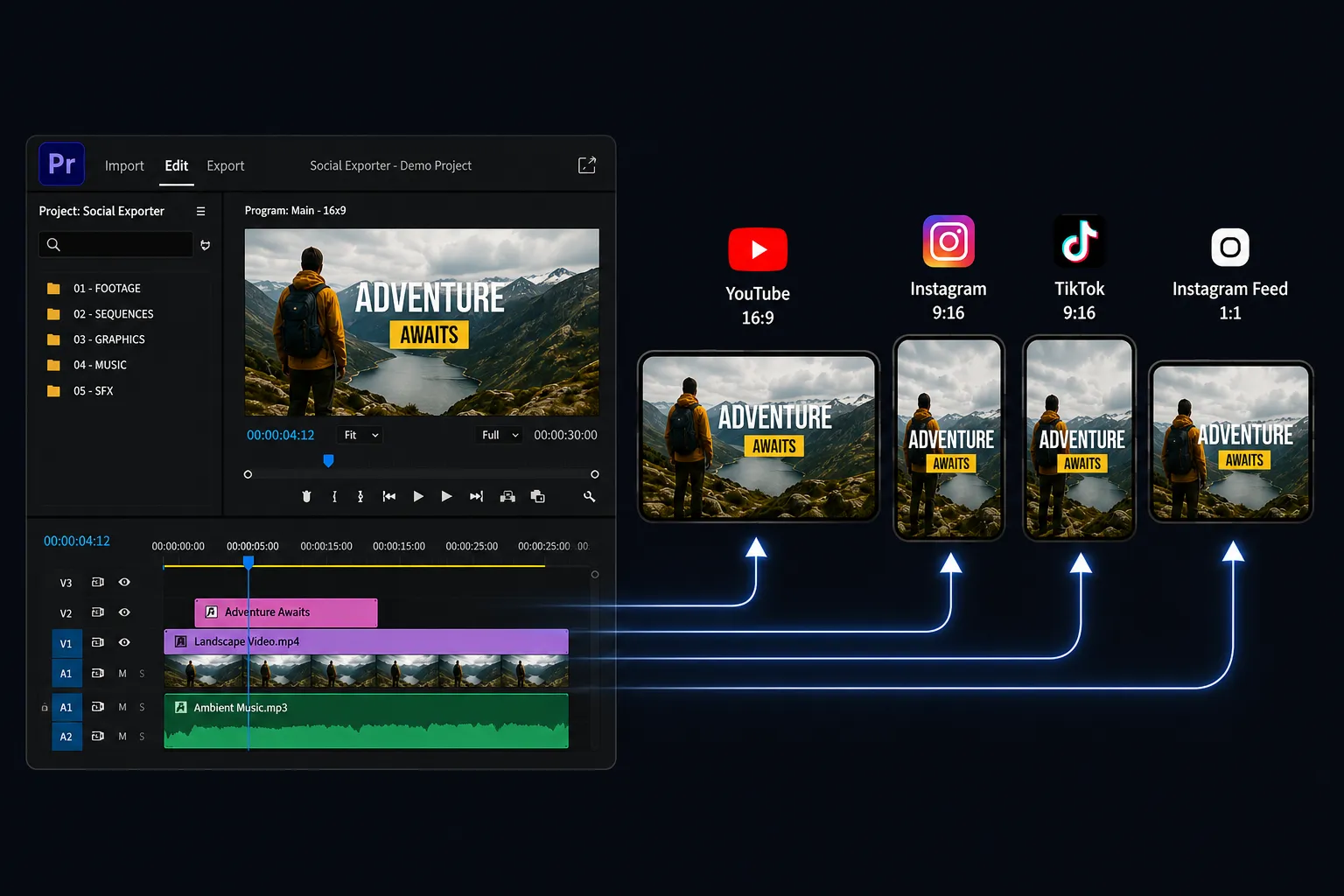
😅 Are You Still Creating a Separate Project for Every Social Media Platform?
Have you ever looked into the Social Exporter Plugin by aescripts? If you work with Premiere Pro, this scenario probably sounds familiar. You carefully edit a video, adjust the colors, arrange the text, and get everything ready. But just when you think you’re done, the export process begins!
This is when you have to prepare your video several times for different social media platforms. Instagram wants vertical, TikTok wants vertical, YouTube wants horizontal, and Facebook wants square! 😅
For one project, you may be able to deal with preparing and exporting your video multiple times. However, if you have several editing projects every single week, you’ll find yourself in a time crunch. That’s exactly why tools have been developed to automate much of this repetitive workflow.

🎬 Why Does Every Platform Need a Different Export?
You might think, “Isn’t a video just a video?” 🤔
In reality, every social media platform has its own standards. For example, YouTube typically displays horizontal videos, while Instagram Reels and TikTok are designed for vertical videos. Some sections of Instagram also display square or 4:5 aspect ratio content more effectively.
If you upload the same horizontal video to Reels without any adjustments, you’ll usually end up with empty space around the video or a much smaller display.
To make the final result look professional, the video needs to be reframed, an appropriate background should be added, and even the position of text and logos often needs to be adjusted. That’s why creating multiple versions of the same project is so important.
🛠️ Common Methods for Preparing Multiple Video Versions
The good news is that you don’t necessarily need third-party tools to prepare different versions of a video. Premiere Pro itself provides useful features, and with a little time and patience, you can create platform-specific exports.
A typical workflow looks like this:
- 🎬 Create a new sequence with the appropriate dimensions for each platform.
- 📏 Adjust the image size and position using Scale and Position.
- 🤖 Use Auto Reframe for better framing on certain videos.
- 🌈 Fill empty space with a solid color or a blur effect.
- 🏷️ Reposition text, logos, and other graphic elements.
- 📤 Export a separate version for each platform.
If you only export videos for one or two platforms occasionally, this workflow works perfectly well, and you probably won’t feel the need for additional tools.
😵 What Are the Challenges of This Workflow?
The real challenge begins when the number of exports increases. Imagine you need to create YouTube, Instagram Reels, YouTube Shorts, and TikTok versions from the same project. In that case, you’ll need to create multiple sequences, repeat almost identical settings over and over again, and constantly recheck the placement of your footage, text, and logos. It may not take much time for a single project, but when you’re editing several videos every day or every week, these repetitive tasks gradually consume hours of your time. The more manual steps involved, the greater the chance of forgetting a setting or creating inconsistencies between different exports.
⚡ What Exactly Does Social Exporter Do?
If you’ve been creating a separate sequence for every social media platform and repeating the same adjustments over and over, Social Exporter was built specifically to simplify this workflow. The plugin installs directly into Adobe Premiere Pro and helps you prepare multiple versions of the same project for different social media platforms with just a few clicks. Social Exporter doesn’t handle rendering itself. Instead, it creates the required sequences inside your project, and you can then export them using Adobe Media Encoder or Premiere Pro.
📱 Automatic Sequence Creation for Multiple Platforms
One of the top features of the plugin is the ability to automatically create sequences for your different social media platforms. All you have to do is choose the platforms for which you would like to export your project. The plugin will then automatically create sequences for platforms like YouTube, YouTube Shorts, Instagram Reels, TikTok, Facebook, and any that you have configured in advance in your project. This feature greatly saves you time and effort while reducing the potential for mistakes when creating these exports.
🎯 Intelligent Frame Adjustment
Another of the biggest challenges for editors is changing the aspect ratio of their footage. Whenever you create a sequence in vertical or square format from a horizontal video, you must choose between cropping the image or leaving a portion of the frame empty. Social Exporter gives you several options. You can choose for the image to fill the frame, to be fitted to the frame in relation to its width or height, or leave it as it is. This allows you to choose the perfect method of displaying your video content.
🌈 Professional Empty Space Management
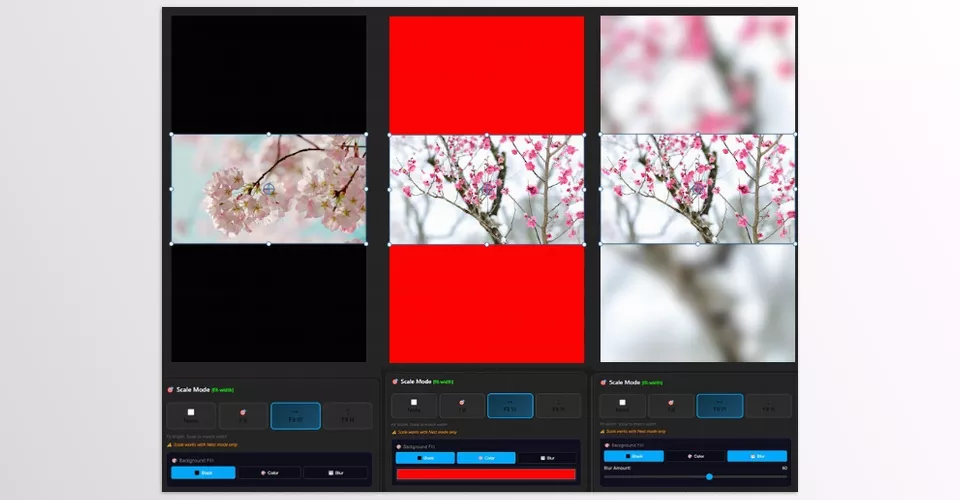
When you alter the aspect ratio of your video clips, there will usually be some empty space around the video. Social Exporter lets you choose a few different solutions to this problem. You can choose a black background, a solid color of your choosing, or place a blurred version of your video in the background. This is a very helpful feature for content like educational videos or podcasts.
🏷️ Complete Watermark Features
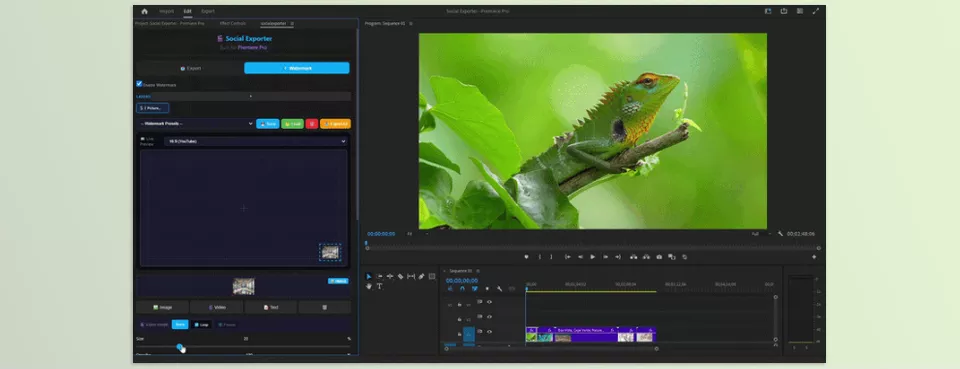
If you make videos for your brand or clients, you probably use watermarks on your videos. Social Exporter goes beyond simply allowing you to place an image in your project. You can place image, text, or even video watermarks on your videos. In some of the newer versions, you can even place multiple watermarks on your video at the same time. This is perfect for video creators and companies that want to maintain their brand and visual identity in their videos.
🎥 Support for Animated Logos and Transparent Files
One of the plugin’s standout features is support for video files with alpha channels. If you have an animated logo or motion graphic in MOV + Alpha format, you can place it directly on your video without any additional setup. The Repeat Mode feature also ensures that if your watermark clip is shorter than the video itself, it automatically loops until the end while muting the watermark’s audio so it doesn’t interfere with your project’s original soundtrack.
⚙️ Saving and Managing Settings
Another feature that may seem simple at first but becomes extremely valuable across multiple projects is the ability to save your settings. If you consistently use the same export style or watermark configuration, there’s no need to recreate everything from scratch each time. Social Exporter allows you to save presets for platform selections, resizing methods, and even watermark configurations. In future projects, you can reuse those settings with just a few clicks. It also includes Focus Preview for easier logo and text positioning, as well as a Spacing option that lets you control how frequently watermarks appear throughout the video.
Overall, Social Exporter isn’t designed to replace Premiere Pro. Instead, it speeds up, organizes, and streamlines the repetitive tasks involved in preparing social media exports. If you regularly create content for multiple platforms, this plugin can save a significant amount of time that would otherwise be spent creating sequences and applying the same settings repeatedly.
💡 A Few Tips to Make Your Results Look Even More Professional
No matter how much a tool automates your export workflow, following a few simple practices can significantly improve the quality of your final videos. They don’t take much time, but their impact is immediately noticeable.
- 🎯 Keep important elements near the center of the frame.
Before creating vertical or square versions, position your text, logos, and other important elements as close to the center as possible. This reduces the chances of important content being cropped or requiring major repositioning after changing the aspect ratio. - 👀 Review every sequence before exporting.
Although the plugin automates most of the workflow, it’s still a good idea to review every newly created sequence before exporting. This is especially important if your subject moves significantly throughout the video, ensuring everything remains properly framed. - 🌫️ Use blurred backgrounds whenever possible.
If changing the aspect ratio creates empty space, a blurred background is usually a much more professional choice than black bars. It gives your video a cleaner, more modern appearance and makes the final result—especially on Instagram Reels and TikTok—look more engaging.
Ultimately, combining an efficient workflow with these simple best practices helps you create exports that are not only faster to produce but also more polished and visually consistent.
🎉 Spend Your Time Editing, Not Repeating Tasks
Video editing doesn’t end with producing a single export—especially if you’re creating content for multiple social media platforms. A significant amount of time is spent on repetitive tasks like creating different sequences, changing aspect ratios, and exporting multiple versions—tasks that do nothing to improve your creativity.
Social Exporter was made to eliminate the repetitive steps editors have to take to export videos to different platforms. It will not edit your videos for you, but it will make the export process easier and help you focus on editing to create better videos.
If you do not export your videos to different platforms, then your time with Premiere Pro’s built-in tools may be sufficient for you. However, if you are a professional editor who creates videos for Instagram, YouTube, TikTok, or any other social media platforms, Social Exporter is the ultimate plugin to help you save time and money 🚀
Are you overwhelmed by the number of After Effects tools available? Our guide makes it easier to understand the different categories, from plugins and scripts to presets and project templates, so you can find the right solutions for your needs.



