

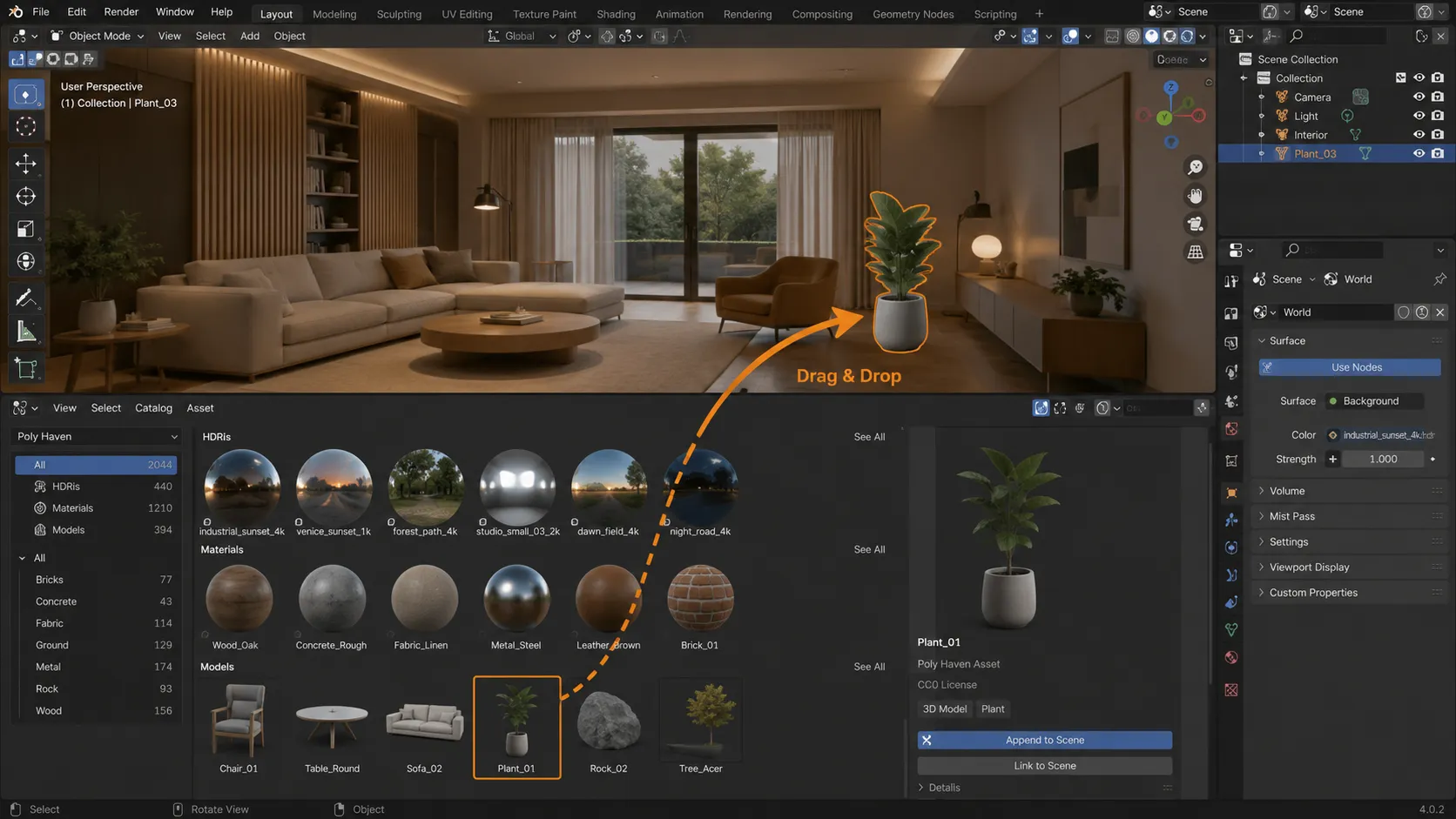
When Half Your Time Is Spent Finding Assets! 🎯
Do you know how the Poly Haven Asset Browser by Superhivemarket works? If you’ve worked with Blender, this situation probably feels familiar: you’re in the middle of a project and need a good wood material. Then you remember that you also need to find an HDRI, and after that, you start looking for a few tree or rock models. Before you can get back to designing, you’ve opened a bunch of browser tabs, downloaded several files, extracted them, and now you still have to import everything into the project!
The reality is that, in many cases, the time we spend finding assets is no less than the time we spend building the scene itself. When this process is repeated in every project, it slows down your workflow and takes your focus away from the exciting part of the process: design and creativity.

Why Is Having an Asset Library So Important?
Very few people start every project from scratch and create every model or material themselves. In fact, one of the main reasons the 3D design workflow has become faster is the use of high-quality, ready-made assets.
For example, imagine you’re designing an interior space. Instead of recreating wood, metal, or fabric materials for every object, you can spend just a few seconds applying a ready-made material to the model. Or, if you’re building a natural environment, you can quickly create a scene that looks completely realistic using a few rock, tree, and plant models.
Lighting follows the exact same principle. A good HDRI can completely change the mood and atmosphere of a scene in just a few seconds—something that would probably take much longer if you tried to achieve it using regular lights.
That’s why, for many designers, having a complete library of models, materials, and HDRIs is not a luxury; it’s a real necessity.
🔍 Finding and Importing Assets the Usual Way
Blender itself has excellent tools for creating materials, lighting scenes, and managing assets, but it does not include a large built-in library of ready-made models, materials, and HDRIs. Because of this, you usually have to visit different websites, find the file you need, and then import it into your project.
The process usually looks like this:
- 🌐 You visit asset download websites such as Poly Haven or similar platforms.
- 🔎 You search for and download the model, material, or HDRI you need.
- 📂 You extract the compressed files.
- 📥 You import them into Blender using Import or Append.
- 🎨 If necessary, you fix the texture paths.
- ⚙️ You manually adjust the texture scale or Displacement settings.
😅 Why Does This Method Become Tiring Over Time?
Going through these steps for one or two assets may not be difficult at all, but when you’re in the middle of a large project and constantly need new models, materials, and HDRIs, the situation changes! Each time, you have to switch between your browser and Blender, download files, manage folders, and configure the settings again. Each of these tasks may only take a few minutes, but when they’re repeated many times, you eventually realize that a significant portion of your time has been spent on repetitive tasks rather than design and ideation. 🚀
Poly Haven Asset Browser Add-on: When the Entire Poly Haven Archive Lives Inside Blender 🚀
This is where the Poly Haven Asset Browser comes into the picture.
Poly Haven Asset Browser add-on brings Poly Haven’s large library directly into Blender. That means you no longer need to constantly switch between your browser and Blender, download files, or search through different folders while you’re working. Everything can be searched, downloaded, and used directly from the Asset Browser, and whenever you need a model, material, or HDRI, it is only a few clicks away.
The most exciting part is that it feels like you have an always-open library inside your project. Everything you need is waiting right there, and without leaving your design workflow, you can bring it directly into the scene.
📚 Direct Access to Thousands of Assets
After installing the add-on, more than 2,000 assets become directly available inside Blender’s Asset Browser. Everything is categorized, and you can quickly find what you’re looking for based on the asset type or even by searching its name.
All you have to do is select the asset you want and drag and drop it into the scene. There is no longer any need to download files manually, organize folders, or import files one by one.
Best of all, whenever Poly Haven releases a new asset, you can easily access it directly from inside Blender, keeping your library constantly up to date.
🌍 Professional HDRIs for Realistic Lighting
If you’ve ever worked with HDRIs, you probably know that a good HDRI can dramatically improve the quality of an entire render. It creates more natural lighting, more realistic reflections, and an atmosphere that feels alive much faster.
Inside Poly Haven Asset Browser add-on, you have access to a large archive of professional HDRIs with resolutions of 16K and even 20K. These include urban environments, forests, beaches, mountains, lighting studios, cloudy skies, sunrises, sunsets, and dozens of other locations.
As a result, you can usually find a suitable HDRI for any type of project without having to spend hours searching for the right lighting.
🎨 Ready-Made, High-Quality PBR Materials
Creating a realistic material from scratch is always time-consuming, especially when you also need to configure details such as Roughness, Normal, Height, and other maps.
Poly Haven provides hundreds of fully prepared PBR materials, including:
- 🪵 Wood
- 🪨 Stone
- 🧱 Concrete
- ⚙️ Metal
- 🧵 Fabric
- 👞 Leather
- 🌱 Soil
- 🛣️ Asphalt
All you have to do is apply the material to the model, and its appearance will completely change within seconds. This saves an enormous amount of time, especially in architectural projects, product design, and environment creation.
🏡 Ready-Made 3D Models for Building Scenes Faster
Not everything has to be modeled from scratch!
Inside the Poly Haven library, you can find many different types of ready-made 3D models, ranging from trees, plants, rocks, and cliffs to furniture, decorative objects, industrial equipment, and many other useful objects.
For example, if you’re designing an interior space, you don’t need to spend hours modeling every plant pot, chair, or decorative item. Or, if you’re building a natural environment, you can create a complete and realistic scene within minutes using a few ready-made models.
📏 Choosing the Right Resolution for Every Project
One useful feature of the Poly Haven Asset Browser add-on is that you are not forced to download the heaviest version of every asset.
If you’re working on a lighter project or only creating a preview, you can choose the 1K, 2K, or 4K versions. However, 8K and higher-resolution versions are also available for final renders and professional projects.
This means less hard drive space is used, memory consumption is reduced, and the Viewport runs much more smoothly.
📐 Automatically Adjusting Texture Scale
You’ve probably applied a material to a model before, only to find that the texture looked so large or so small that it appeared completely unnatural.
To solve this problem, the add-on includes a button called Fix Texture Scale, which automatically calculates the correct texture size and applies it to the model.
You no longer need to spend a long time struggling with the Mapping Node or UV settings just to get the texture scale right.
🪨 Enabling Displacement with a Single Click
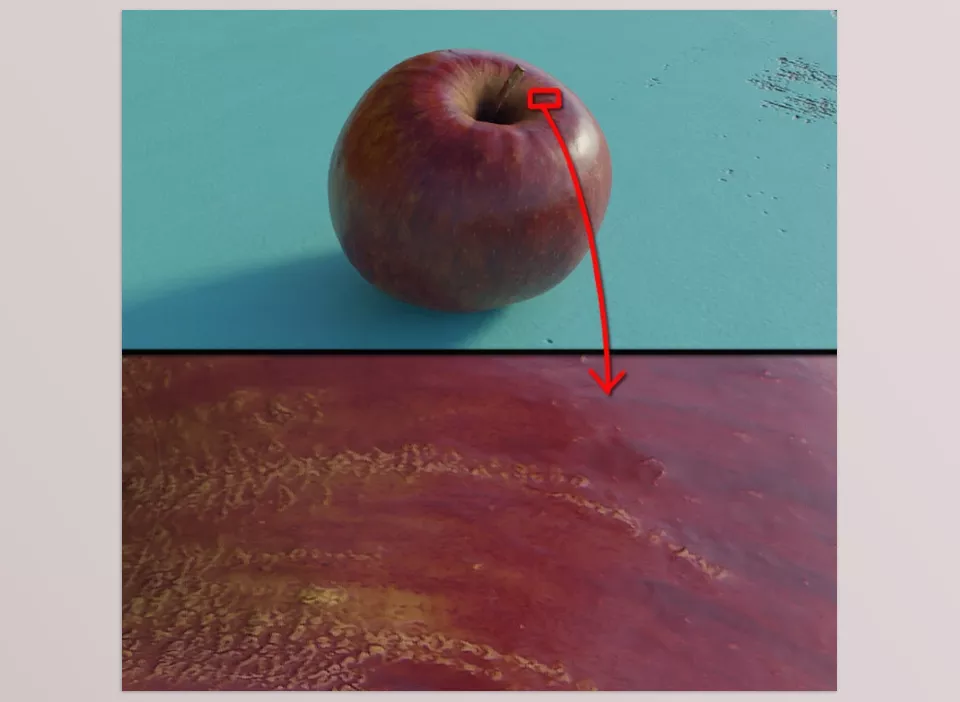
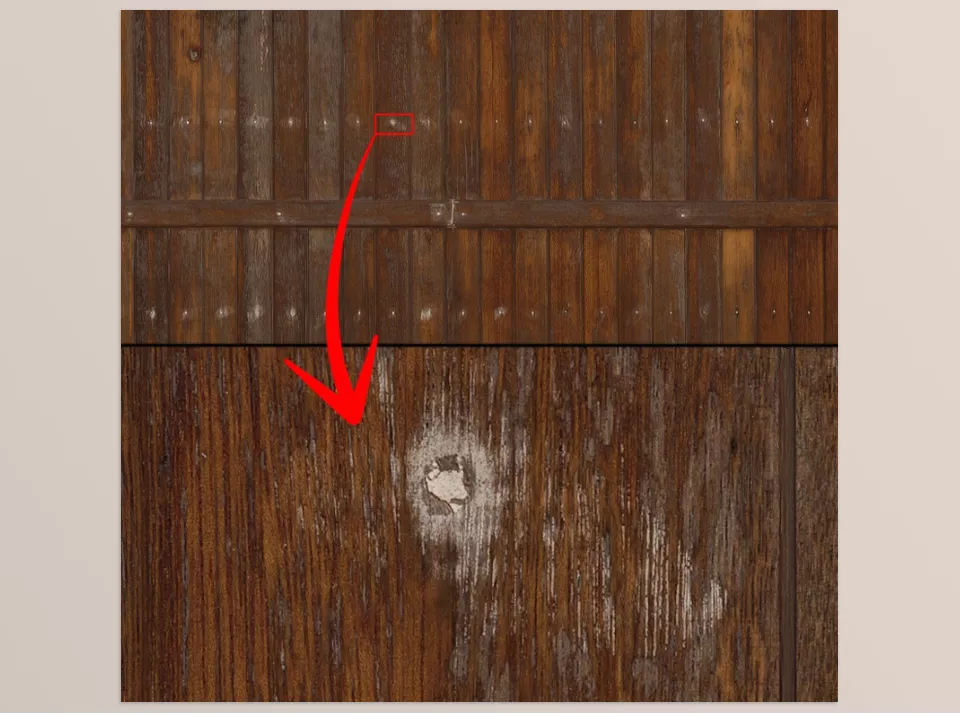
One of the appealing features of Poly Haven materials is the use of real Displacement to create natural surface depth and detail.
However, setting up this feature inside Blender involves several different steps, and if you’re not familiar with the process, it can take a lot of time.
With just one button, Poly Haven Asset Browser add-on completes all the required settings and prepares the material to use real Displacement. As a result, you will achieve a more natural and realistic final output.
☀️ Easily Controlling HDRIs Without Entering the Node Editor
You don’t need to enter the Node Editor and search through different nodes to change the HDRI settings.
From the add-on panel, you can easily:
- 🔄 Rotate the environmental lighting angle.
- 💡 Increase or decrease the light intensity.
- 🎨 Adjust the White Balance value.
All of these settings can be changed from a simple panel, making the project lighting process much faster.
🌿 Support for Geometry Nodes and LOD Models
Some assets in the library, such as grass, vegetation, and even certain trees, are provided with Geometry Nodes. This means you only need to place them on the desired surface, and they will be intelligently distributed across the ground, allowing you to create a natural environment very quickly.
In addition, many models also include different LOD versions, or Levels of Detail. Whenever the project becomes heavy, or the number of objects increases, you can choose a lighter version of the model so that the Viewport runs more smoothly and rendering is completed faster, without causing a noticeable reduction in the project’s overall quality.
A Few Tips for Getting Better Results from the Poly Haven Asset Browser Add-on ✨
Poly Haven Asset Browser add-on makes working with assets much faster, but by following a few simple tips, you can keep your projects lighter and make the best use of its features.
- 🖼️ Don’t always download the highest resolution. In many cases, the 2K or 4K versions are more than enough for the project and help reduce storage usage while keeping the project running more smoothly.
- 🔎 Search the library before creating a new material. There is a very high chance that the material or asset you need is already available, which can save you several minutes or even several hours.
- 🌤️ Start your lighting with a good HDRI. Even if you plan to add custom lights to the scene later, a suitable HDRI can provide a very strong foundation for natural lighting and reflections.
- 🚀 Use LODs if the project becomes heavy. Using lighter versions of models makes working in the Viewport much smoother and can also improve rendering speed.
- 📁 Keep your frequently used assets close at hand. If you use certain materials, models, or HDRIs in most of your projects, keeping them in your library will help you start future projects much faster.
By following these simple tips, you will spend less time on repetitive tasks and get the most out of Poly Haven’s large library. The result is clear: greater speed, easier management, and more focus on the most exciting part of the work—designing and building the scene. 🚀
When Your Time Is Spent Designing, Not Finding Files 🎯
In 3D projects, what slows down your workflow is often not the difficulty of the design itself, but the small tasks that are repeated over and over again. Finding a suitable model, searching for a high-quality material, downloading files, and configuring them may not take much time each time, but when these tasks are repeated throughout a project, they consume a large portion of your energy and focus.
The Poly Haven Asset Browser Add-on helps make this process shorter and simpler. Instead of leaving your project to search for assets, everything is available right inside Blender—from 3D models and PBR materials to professional HDRIs. As a result, you spend less time on preparation and have more time for ideation, lighting, and improving the final output.
If you work with Blender frequently and a significant part of your projects is built using ready-made assets, the Poly Haven Asset Browser add-on can become one of the permanent tools in your workflow. Its main value isn’t simply having thousands of ready-made files; it’s removing several repetitive steps from your workflow every time and helping you move from an idea to the final result faster. 🚀
If learning Blender tools is your goal, our Blender Tools article introduces all of them with clear explanations and shows how to put them into action in real projects.



