Initial Familiarity with Auxiliary Tools
Whether you’ve played around with Unreal Engine or dreamed of making your own game or 3D environment, it’s safe to say that the overwhelming variety of choices and features can be beyond intimidating. How can someone easily create a character, a world, or gameplay without reinventing the wheel in the developing process? The answer is auxiliary tools!
Unreal Engine tools include things like plugins, Blueprints, ready-made packs, and even material functions that help you build your projects faster, more creatively, and with fewer errors. With these tools, you can easily handle complex tasks such as character movement systems, item management, professional lighting, and even generating natural environments.
In this article, we’ll go over 9 main categories of Unreal Engine tools and see what each one does and how they can make the life of a game developer or 3D designer easier.
An Overview of the Categories of Unreal Engine tools
Before we dive into the details of the tools, it’s useful to have a general picture of the main categories of Unreal Engine tools. These categories help us understand what each tool does and where it should be used.
In general, auxiliary tools can be divided into 9 main categories:
- Plugins
- Blueprints / Blueprint Templates
- Asset Packs
- Editor Utility Widgets / Scripts
- Custom Shaders / Material Functions
- Templates / Starter Packs
- C++ Plugins / Modules
- Editor Extensions
- Procedural Tools / Generators
With this classification, when we introduce each tool, it’s easier to understand what it’s made for and what advantage it offers.
Unreal Engine Auxiliary Tools: The Constant Companions of Project Development
Now that we’ve had a general look at the categories, it’s time to examine each one more closely. These tools act like small but powerful assistants: some increase the speed of game creation, some simplify complex tasks, and some make your systems and content reusable. Let’s go through the 9 main categories and see exactly what each one does and why every Unreal Engine developer should know them.
1. Plugins
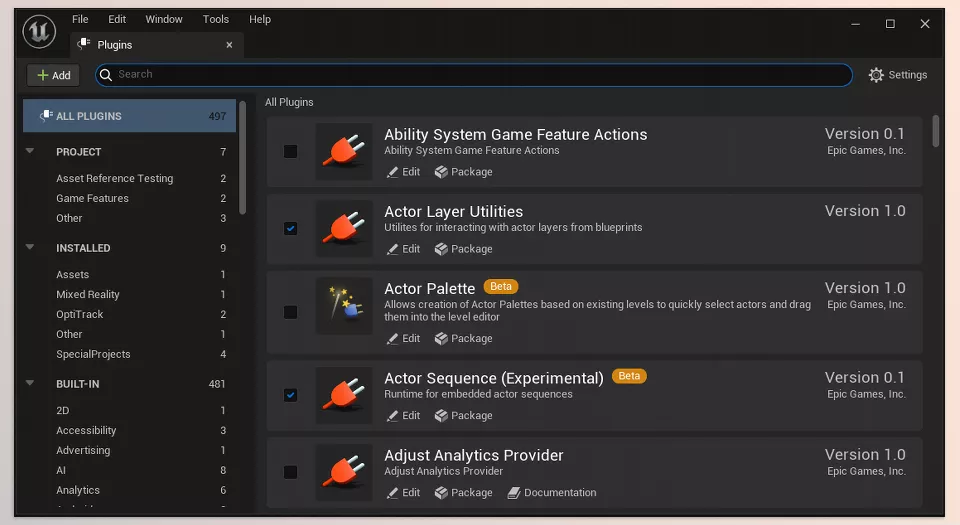
Among the most versatile Unreal Engine tools, plugins play a crucial role in extending the engine’s core capabilities.
What are they?
Plugins are like an extra toolbox for Unreal Engine. They add new tools and features to the engine itself so you can build your project faster and more professionally without having to start everything from scratch.
What they’re used for:
- Adding new features to the project, such as lighting systems, AI, or physics
- Expanding Unreal Engine’s existing tools
- Simplifying complex tasks that would take a long time to build manually
Simple examples:
- A plugin that makes character controls more advanced
- A plugin for optimized environment lighting management
Important Subcategories of Plugins
C++ Plugins / Modules
- These are plugins written in C++ that add professional and custom features to the project.
- Usage: creating complex, customized systems, optimizing performance, and enabling features that Blueprints can’t handle.
- Example: a plugin for realistic physics simulation or advanced AI for enemies
Editor Extensions
- These are plugins that expand the Unreal Editor environment and make working with the project easier.
- Usage: adding new panels and tools for faster editing, better project management, and simplifying complex editor tasks.
- Example: a custom panel that organizes and categorizes all the objects in an environment
Quick Comparison:
- C++ Plugins focus more on systems and advanced features, suitable for large and professional projects.
- Editor Extensions focus on adding new features to the editor itself, not the game’s content or behavior.
- Simply put: Plugins are new machines in Unreal’s workshop, C++ Plugins are advanced machines for professional systems, and Editor Extensions are panels and tools that make the workshop environment easier and more practical.
2. Blueprints / Blueprint Templates
What are they?
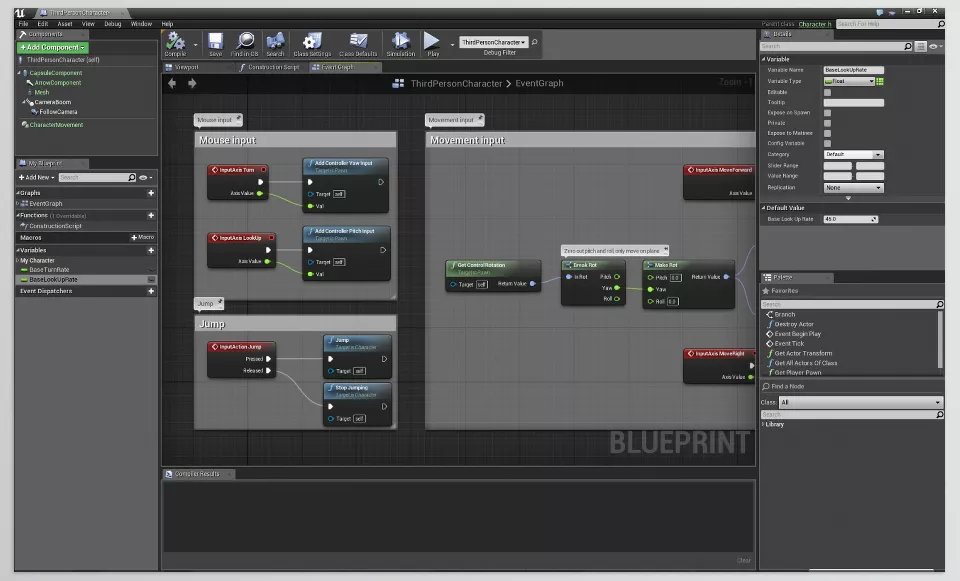
Blueprints are like a visual instruction system in Unreal Engine. Instead of writing code, you drag and connect ready-made blocks to define the rules and behaviors of the game.
What they’re used for:
- Controlling the movement and behavior of characters and enemies
- Defining player interactions with the environment (e.g., when the player presses a key, a door opens)
- Building gameplay systems such as health, inventory, or missions
- Managing UI and displaying game information
What are Blueprint Templates?
Blueprint Templates are ready-to-use versions of Blueprints. Some common behaviors and systems (such as character movement or simple AI) are pre-made, and you can just drop them into your project and use them directly, or make small adjustments.
Simple examples:
- Blueprint: defining that when your character reaches water, they swim, and when they’re on land, they walk.
- Blueprint Template: a ready-made character template with movement, jumping, and running already included that you just drag into your project.
Quick Comparison with Plugins:
- Blueprints focus more on game logic and behaviors, while Plugins can add broader and more general features to the engine itself.
- You can say Blueprints are the instructions for operating the machines, while Plugins are the machines themselves.
- Templates make Blueprints pre-built and ready to use, which speeds up the workflow greatly.
3. Asset Packs
What are they?
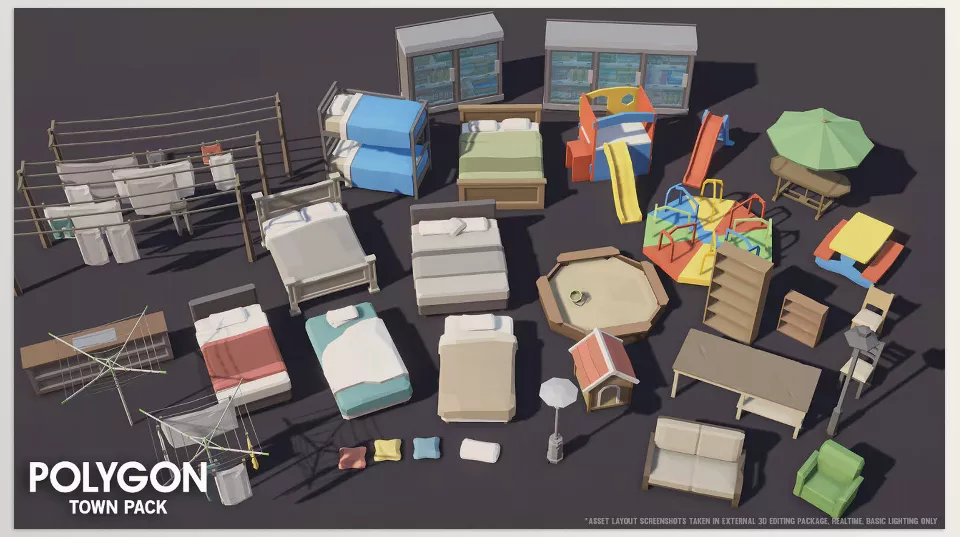
Asset Packs are ready-made bundles that include models, materials, textures, and animations. In other words, everything you need to build environments, characters, and objects is collected in one package.
What they’re used for:
- Quickly creating environments and characters without designing everything from scratch
- Saving time and reducing project complexity
- Helping beginners practice and learn with ready-made examples
Simple examples:
- A ready-made pack containing trees, rocks, and buildings for a forest environment
- A ready-made character pack with walking, running, and jumping animations
Quick Comparison with Blueprints and Templates:
- Asset Packs focus more on content and visuals—the things players see and interact with.
- Blueprints and Templates focus more on logic and behavior—how objects move or what happens.
- Simple analogy: an Asset Pack is like ready-made toys, Blueprints are the instructions for playing with the toys, and Templates are a ready-made package including both toys and instructions.
4. Editor Utility Widgets / Scripts
What are they?
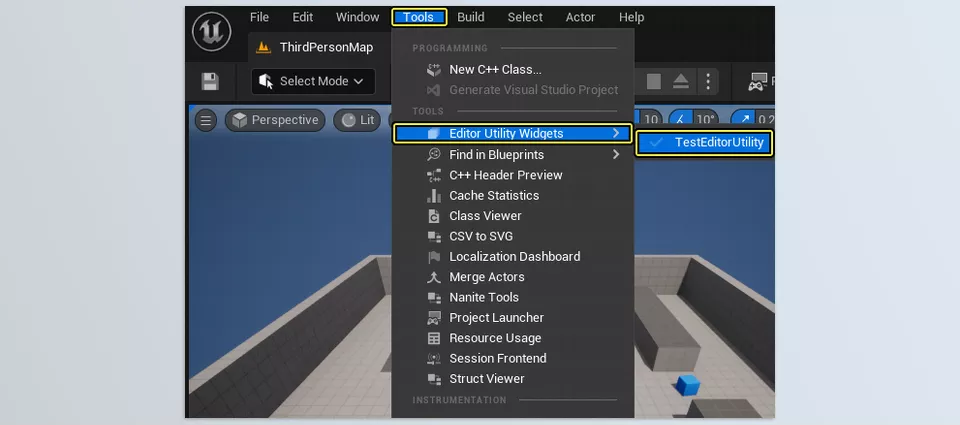
Editor Utility Widgets / Scripts are like little assistants inside the Unreal Editor itself. Tasks that are usually manual and repetitive become quick and automated with them.
What they’re used for:
- Performing repetitive tasks like batch renaming objects
- Automatically arranging and organizing objects in the environment
- Helping with fast export or import of data
- Simplifying workflow and project management
Simple examples:
- A script that automatically turns all lights in a scene on or off
- A widget that organizes and renames all the objects in an environment without you having to do it manually
Quick Comparison with Asset Packs and Blueprints:
- Editor Utility Widgets focus more on the environment and design process itself, not on game content or behavior.
- Asset Packs provide ready-made visuals and content, Blueprints provide logic and behavior, but Widgets/Scripts simplify behind-the-scenes and repetitive tasks.
- Simple analogy: if an Asset Pack is like a toy, and a Blueprint is the instruction manual for playing with it, an Editor Utility Widget is like a small assistant that organizes all the toys and prepares them for play.
5. Custom Shaders / Material Functions
Custom shaders are specialized Unreal Engine tools that define how materials interact with light and color.
What are they?
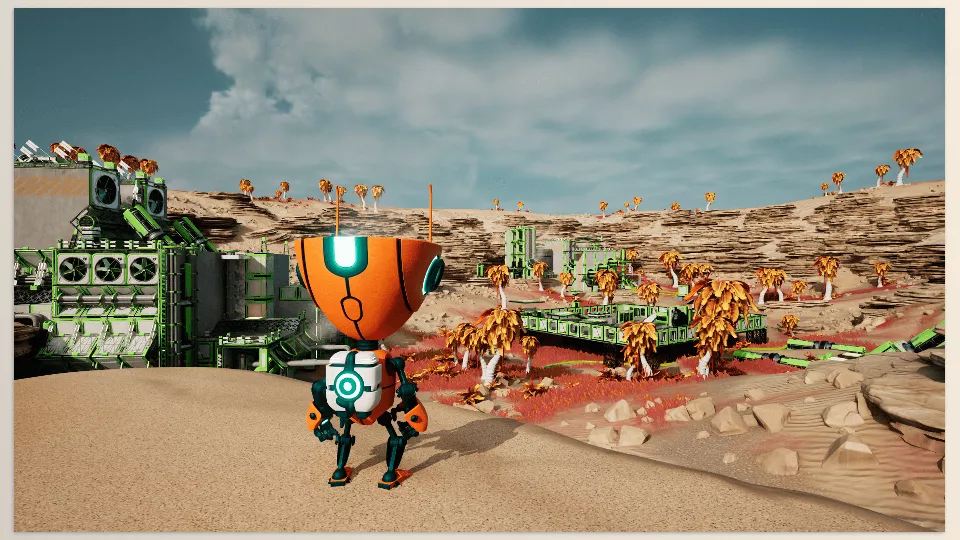
These are like formulas or ready-made instructions for materials and visual effects in Unreal Engine. They allow you to create effects for light, color, transparency, and object appearance without redoing everything from scratch.
What they’re used for:
- Building complex materials and shaders more quickly
- Reusing effects across different projects
- Creating professional visual effects such as glass, water, metal, or special lighting
Simple examples:
- A ready-made material function for simulating realistic water with waves
- A ready-made shader for glass that bends light and has realistic transparency
Quick Comparison with Asset Packs and Blueprints:
- Asset Packs focus more on ready-made object appearances, while Custom Shaders focus on how light and color behave on objects.
- Blueprints handle logic and game behavior, while Shaders handle visuals and effects.
- Simple analogy: an Asset Pack is like the model of a glass, a Blueprint defines how the glass moves or breaks, and a Custom Shader defines how the glass reflects light and looks transparent.
6. Templates / Starter Packs
What are they?
Templates or Starter Packs are ready-made projects and systems that help you start a project faster and more easily. Everything is preconfigured, and you can just jump into the project and begin building your game or environment.
What they’re used for:
- Quickly starting a project without having to build everything from scratch
- Including initial settings, ready-made Blueprints, and basic assets
- Suitable for beginners and teams that want to standardize their workflow
Simple examples:
- A Starter Pack for a platformer game that includes the main character, camera, initial environment, and movement system
- A Template for a first-person shooter with basic controls and a ready HUD
Quick Comparison with Blueprints and Asset Packs:
- Asset Packs only provide ready-made content, while Templates include both content and project systems and settings.
- Blueprints handle logic and behaviors, while Templates are like a complete ready-made package that includes everything from content to behaviors.
- Simplest example: if an Asset Pack is like a toy and a Blueprint is the instruction manual for playing with it, a Template is like a full ready-to-play game package with the toy, instructions, and an environment already prepared.
7. Procedural Tools / Generators
What are they?
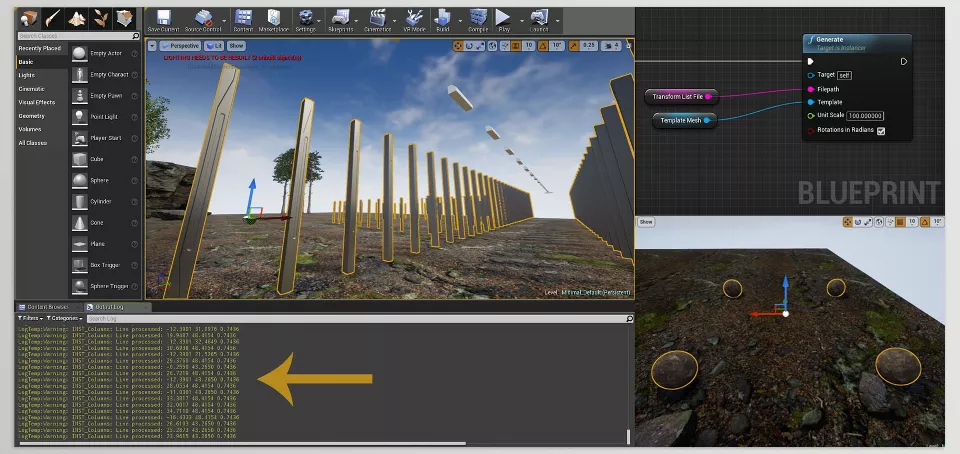
Procedural Tools / Generators are like automated content production machines in Unreal Engine. Instead of manually creating everything, they can automatically generate environments, objects, or details based on specific rules.
What they’re used for:
- Quickly generating natural environments such as forests, mountains, rivers, or roads
- Building large and complex content without spending excessive time
- Allowing high variation and fast changes in environments
Simple examples:
- A tool that places trees, bushes, and rocks into a forest environment with one click
- A generator that automatically creates natural-looking roads or paths in the game world
Quick Comparison with Asset Packs and Blueprints:
- Asset Packs provide fixed ready-made content, while Procedural Tools dynamically generate content automatically.
- Blueprints focus more on behavior and logic, while Procedural Tools focus on quickly and automatically producing environments and objects.
- Simple analogy: if an Asset Pack is a fixed collection of trees, a Procedural Tool is like a machine that creates a new and unique forest for you every time.
Quick Review of Unreal Engine Tools
Now that we’ve fully explored each tool, this table provides a quick summary so you can see at a glance what each tool does and what it’s used for.
| Tool Category | Short Description | Main Use | Tangible Example |
|---|---|---|---|
| Plugins | Tools that add new features to the engine | Adding systems and capabilities | Professional lighting, AI |
| C++ Plugins / Modules | A type of Plugin written in C++ | Advanced systems, high performance | Physics simulation or complex AI |
| Editor Extensions | A type of Plugin that expands the editor | Adding new panels and tools to the editor | Object-organizing panel |
| Blueprints / Templates | Visual system for defining game behavior | Controlling movement, interactions, UI | Character template with movement and jumping |
| Asset Packs | Ready-made bundles of models, materials, and animations | Quickly building environments and characters | Forest or building pack |
| Editor Utility Widgets / Scripts | In-editor automation tools | Repetitive tasks and project management | Script to turn lights on/off |
| Custom Shaders / Material Functions | Ready-made functions for materials and shaders | Creating professional visual effects | Simulating water or glass |
| Templates / Starter Packs | Ready-made base projects or systems | Quickly starting a project | Ready platformer game |
| Procedural Tools / Generators | Automated content generation | Creating large and varied environments and objects | Forest or road generation |
Why Are Unreal Engine Tools Essential?
The truth is that building a game or project with Unreal Engine isn’t just about the engine itself. Unreal Engine tools act like a complete toolbox that multiplies your speed, quality, and creativity. Without them, you might spend hours on something simple, while with a plugin or ready-made Blueprint you could do the same task in just minutes.
These tools also help you focus on your ideas and creativity instead of repetitive, time-consuming tasks. In fact, using Unreal Engine tools doesn’t mean cutting corners—it means working smart. They make it easier for beginners to learn, and they help professionals push projects forward faster and more precisely.
So, if you want your Unreal experience to be more enjoyable and your results to look more professional, adopting these Unreal Engine tools is no longer just an option… they’re a necessity.
In case you’re new to Unreal Engine, make sure to read our Unreal Engine guide, where we’ve covered everything you need to know about it.