

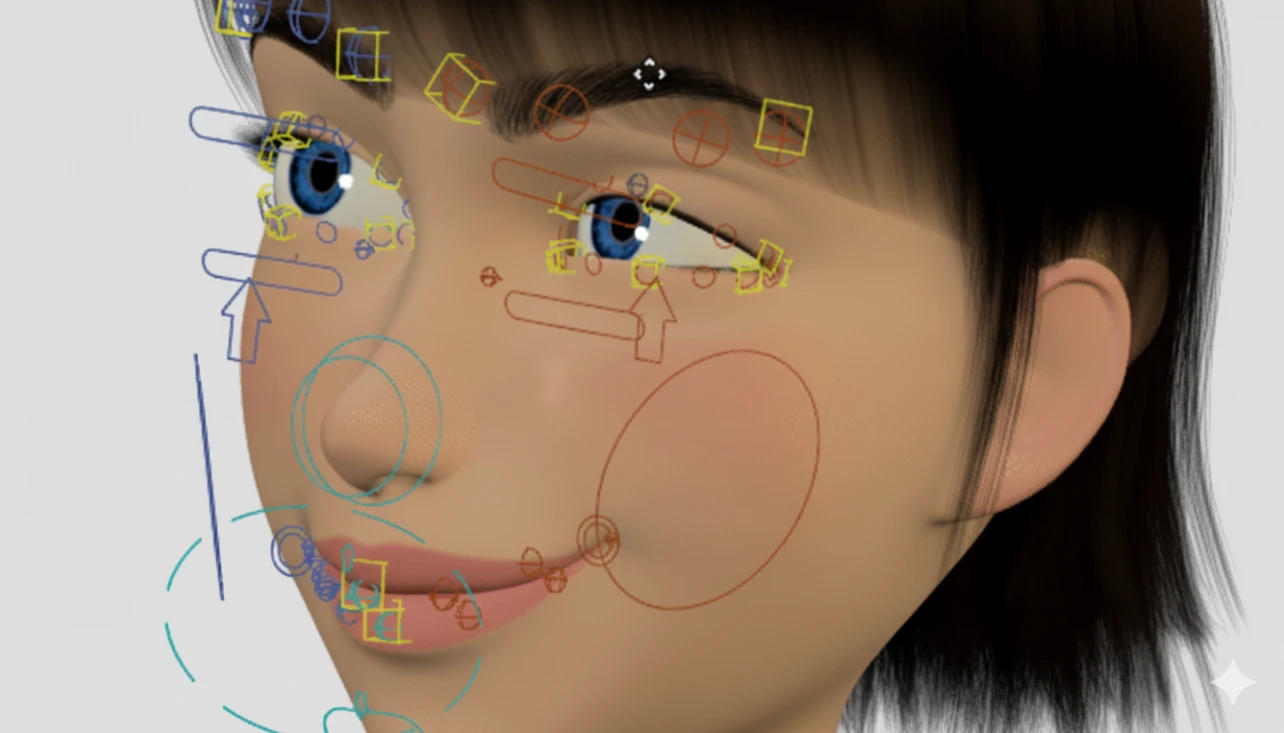
Moving Characters: Hard Work or Fun?
Do you know much about the Auto-Rig Pro? When you have a 3D model, the first thing you probably want is for that character to start moving and come to life. But, well, this task can be very time-consuming and exhausting, especially if you want the movements to look realistic and natural.
Imagine you have a human character; they need to walk, move their hands, turn their head, and even move their fingers correctly. Now, picture a strange creature with wings, a tail, and maybe several arms or legs! How are you going to make all its movements precise and fluid without spending hours?
This is the very challenge that most designers and animators face. Many times, rigging and preparing a model for animation is more exhausting than the animation itself and consumes a lot of energy. And if you want to transfer animations between different characters, things get even more complicated.
This is where tools and add-ons like Auto-Rig Pro come to your rescue—they can make this long and challenging process fast, simple, and even fun. What used to take hours can now be done in minutes, hassle-free, with full control over your character’s movements.

How Characters Come to Life
Rigging essentially means adding bones and controllers to a 3D model so you can create correct and natural movements. Without rigging, your characters are like stiff dolls with no flexibility!
With a good rig, you can:
- Make walking and running look natural, even controlling the speed and rhythm of movements.
- Move hands, feet, and fingers precisely, adding subtle and realistic details.
- Modify facial expressions, make the character smile, move the eyes, and convey emotions.
- Transfer animations between models, for example, applying a walk cycle you created to another character without starting from scratch.
When a rig is done properly, not only do animations look more natural and engaging, but it also saves a lot of time and energy. Instead of spending hours placing bones and adjusting tiny details, you can focus on creativity and storytelling.
In simple terms, rigging is what transforms characters from a raw 3D model into a living, dynamic being. Without it, even the best models feel artificial and stiff!
Blender Can Do It, But…
If you want to animate characters without any add-ons or professional tools, Blender has built-in capabilities. You can use:
- Armature to create skeletons and bones.
- IK/FK for hand and foot control.
- Weight Painting to define which bones affect which parts of the model.
- Shape Keys to adjust facial expressions and subtle movements.
However, the reality is that doing everything manually comes with many challenges:
- Time-consuming: You have to place every bone and controller individually and adjust weights carefully. Hours fly by, especially for complex models or unusual creatures.
- Transferring animations is difficult and confusing: You cannot easily apply pre-made animations to another model because bone names and orientations may differ.
- Exporting for games is tricky: Configuring FBX or GLTF for Unity and Unreal requires experience, and a small mistake can ruin everything.
- Fine control is hard: Fingers, tails, wings, or even clothes and hair are very time-consuming to animate naturally when rigging manually.
Blender can handle it, but it demands a lot of effort and time, especially if you want natural movements ready for games or professional animation.
Tools That Make Your Work Easier
Auto-Rig Pro is designed to handle all the tedious and time-consuming rigging tasks quickly, simply, and with complete control. Instead of spending hours setting up bones, weights, and complex controllers, you can build a full rig in a few clicks that is flexible and editable.
Key Features and Uses:
Automatic Character Rigging
- Bones are automatically placed on human models.
- Hands, feet, head, and spine are positioned according to the model.
- Even asymmetrical or unusually shaped models can be rigged.
Rigging Creatures and Animals
- You can rig creatures with wings, tails, multiple arms or legs, or even fantasy creatures like dragons or anthropomorphic animals.
- Fine control for complex movements is provided without starting from scratch.
Precise Movement Control
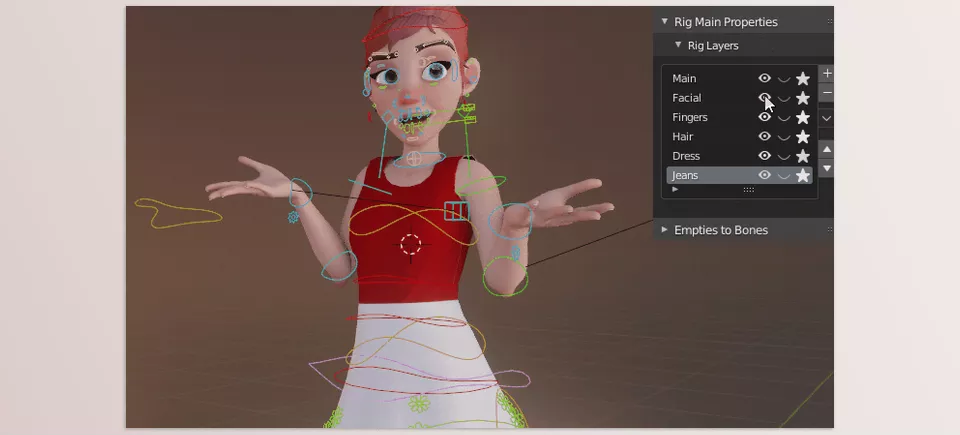
- Hands, feet, fingers, tails, wings, and even clothes and hair are fully adjustable.
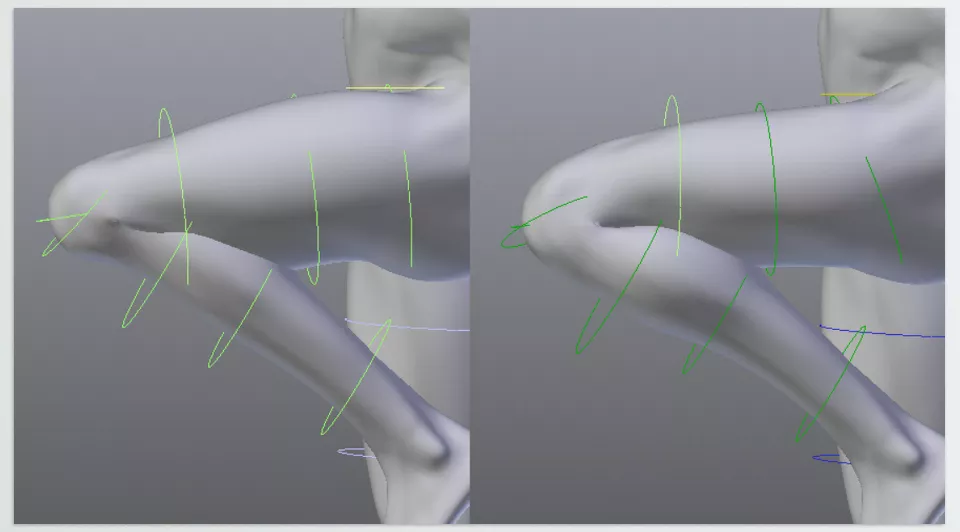
- Secondary controls allow you to tweak bending, stretching, or rotations.
- Movements can be adjusted to look cartoonish or realistic.
Easy Animation Transfer Between Models
- Animations created on one model can easily be applied to another.
- Supports various rigs such as Rigify or custom rigs, even BVH and FBX files.
- IK controls for hands and feet ensure natural motion.
Game-Ready Export
- Compatible with Unity, Unreal Engine, and Godot.
- Includes settings for humans (Humanoid) and other creatures (Universal).
- Supports Root Motion, twist bones, and advanced options to maintain natural volume in games.
Editable and Modular Rig
- Every bone, control, or limb can be added or removed.
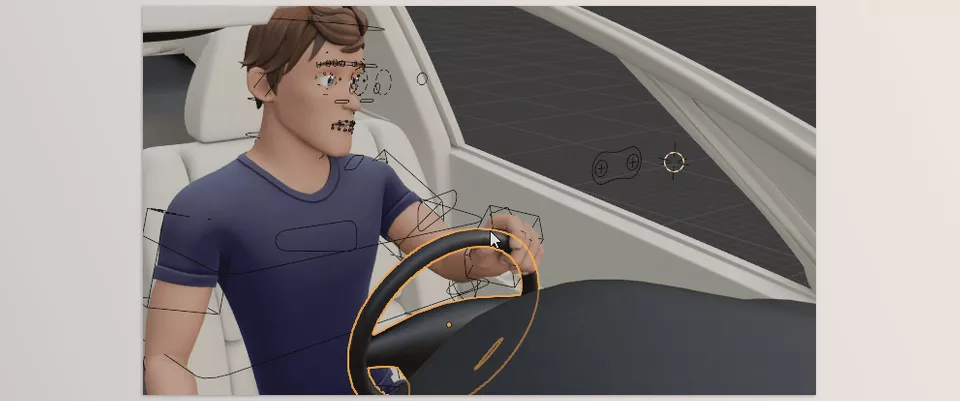
- You can create unusual rigs with multiple arms or legs, add wings or tails, and control facial expressions and fingers precisely.
- Everything is non-destructive and fully editable, allowing you to adjust the rig to your project’s needs.
In short, Auto-Rig Pro is like a magical assistant for character rigging. What used to take hours and was exhausting is now fast, fun, and controllable, freeing your time to focus on creativity and animation details.
How to Use It Better
When working with a professional rigging tool, a few simple tips can make your results much more professional and natural:
- Keep the model watertight: The best automatic skinning results come from a complete model without holes. Any gaps or irregularities may cause rigging and weight painting issues.
- Use secondary controls: These help make subtle bends, stretches, and fine movements appear natural, especially for hands, feet, fingers, tails, or wings.
- Build a base rig first, then add details: For complex or fantasy creatures, start with a simple skeleton covering the main limbs. Gradually add secondary controls, fingers, tail, wings, or unusual limbs for full manageability.
- Use Shape Keys for subtle facial movements: Shape Keys are excellent for expressions, lips, eyes, and small motions. Combine them with rig controls to make your character look alive.
- Always test and tweak: Even after creating the rig, test the movements and adjust controllers to ensure everything moves smoothly. This is especially critical for games and long animations.
These small but professional tips make the difference between an ordinary rig and a fully professional, natural rig. Following them ensures more realistic character movements and smoother, more engaging projects.
Easier Animation, More Engaging Projects
Rigging characters used to be one of the most tedious parts of working with 3D models. Hours were spent placing bones, adjusting weights, and adding small controllers to make movements somewhat natural. Now, with Auto-Rig Pro, all these steps are reduced to a few minutes and clicks, while still maintaining full control over character movements.
With Auto-Rig Pro, you can animate characters smoothly and naturally, even controlling complex motions like bending arms and legs, tail and wing movements, or subtle facial expressions. No more wasting hours on technical rigging problems—you can focus your energy and creativity on designing engaging movements and storytelling.
Moreover, transferring animations between models and exporting for games has become much easier. No need to worry about Unity or Unreal compatibility or animations breaking on other models. Everything is designed to be smooth and reliable, even for fantasy creatures or complex characters.
Ultimately, Auto-Rig Pro simplifies rigging but makes characters more alive and dynamic for a more professional, eye-catching project. Ultimately, if you want to save time and get better results, this tool truly simplifies a process and makes life easier.
Take your Blender journey further by exploring all the tools it offers through our extensive Blender Tools guide, designed to help both beginners and experienced users gain mastery.



