


When Wires and Cables Become a Headache…
Have you ever used the Cablerator? Imagine working on an industrial set or a room filled with high-tech equipment. Cables and wires are everywhere—hanging from the ceiling, scattered on the floor, even tangled between devices.
Now it’s your turn to place these cables in the scene. Drawing them with Bezier Curves or Meshes might be possible, but it’s exhausting and time-consuming. Every cable needs to be drawn individually, shaped along curves, physics simulations set up, and constantly checked to make sure it looks natural.
And worst of all, when you want multiple cables at the same time or cables intersect with each other, everything turns into a nightmare. Paths go wrong, lengths don’t match, and the sense of realism in the scene disappears.
In fact, every time you want cables to look real and natural, you face hours of trial and error and complex adjustments… and this is exactly the moment every animation and motion graphics artist dreams of having a fast and smart solution.

Why Aren’t Cables Just Simple Lines?
You might think cables and wires are minor scene details, but the truth is, these small elements define the realism and depth of a scene. Cables hanging from the ceiling, wires tangled between devices, or ropes stretched from one point to another can make the difference between a “good” scene and a believable and lifelike scene.
Applications:
- Industrial Scenes: Cables hanging on desks, machines, and ceilings.
- Technology and Robotics: Wires behind devices and controllers give a sense of complexity and realism.
- Rope and Cable Scenes: Even in fantasy or action animations, ropes and cables convey dynamics and movement.
These details not only make the scene look more natural and professional, but they also help the viewer understand the location and function of objects. Cables are like the lifelines of a scene—even if you don’t notice them, their absence is felt!
Without an Add-on, What Do We Do?
To create cables and wires in Blender, several classic methods are usually used:
- Bezier Curve: The simplest method; draw the cable’s path along a curve and give it volume with Bevel.
- Curve Modifier & Array: For creating multiple similar or repetitive cables, modifiers help.
- Soft Body or Cloth Simulation: If you want cables to droop naturally, Blender’s physics system is used.
So far, so good—but the challenges appear when you dive into details. Drawing cables manually takes a lot of time, especially if there are many or if you want them to rest naturally on surfaces. Physics simulations have so many parameters that even after hours of work, the result may not match your vision. And when multiple cables collide, or you need insulation and extra details, the scene quickly becomes messy and confusing.
In the end, creating realistic cables with Blender’s default tools is possible—but it requires saint-like patience! 😅
Cablerator: When Cables Play!
Have you ever been in the middle of a heavy project and thought, “I wish there was a faster way to create all these cables?”
Cables seem like simple details, but when you try to make them real and precise, you realize how time-consuming and sensitive they are. This is where Cablerator comes in—a tool that transforms cable creation, editing, and simulation in Blender from a tedious task into a creative and even enjoyable experience.
Cablerator is designed for Blender 2.8 and above and focuses entirely on one thing:
Letting you execute your idea, not wrestle with Blender’s curves and physics.
✦ Cable Creation in Just a Few Clicks
No more spending hours adjusting curve paths or sticking cables to surfaces. With Cablerator, just click on the geometry, and the cable shapes itself between points or along surfaces. Want to draw a cable between two objects? Just select them—and done.
✦ Effortless Physics Control
Cables usually need physics simulations to look natural—but adjusting parameters is always a nightmare. Cablerator uses Blender’s physics, but simplifies it for you. Cables hang naturally without diving into complex menus.
✦ Hundreds of Cables, No Hassle
Imagine needing dozens of cables in a server room scene. With default tools, that means hours of repetitive work.
With Cablerator, a few clicks are enough to generate hundreds of cables across selected surfaces, each with different lengths and angles—natural and organized.
✦ From Cable to Rope
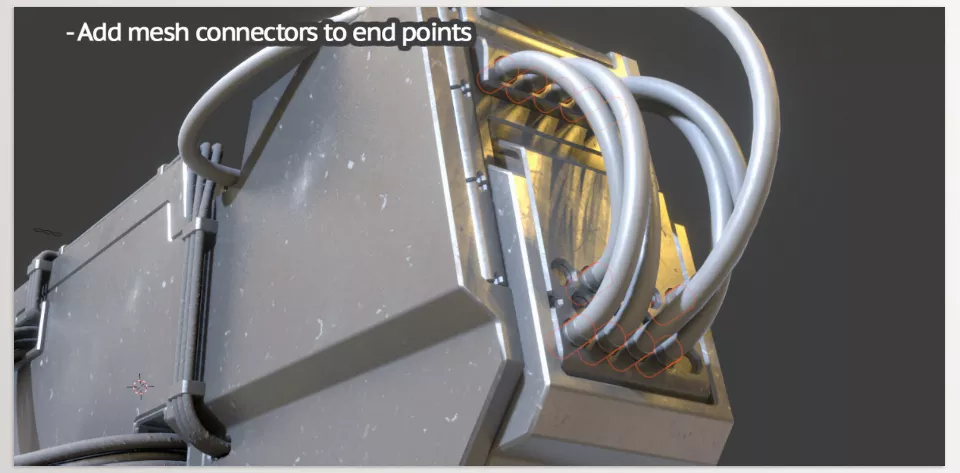
One unique feature of Cablerator is creating rope-like or insulated cable structures.
For thick ropes or cables inside insulation, simply activate Insulation or Rope Structure settings. The result? Cables that look real and convey texture and physical weight.
✦ Fast Group Editing
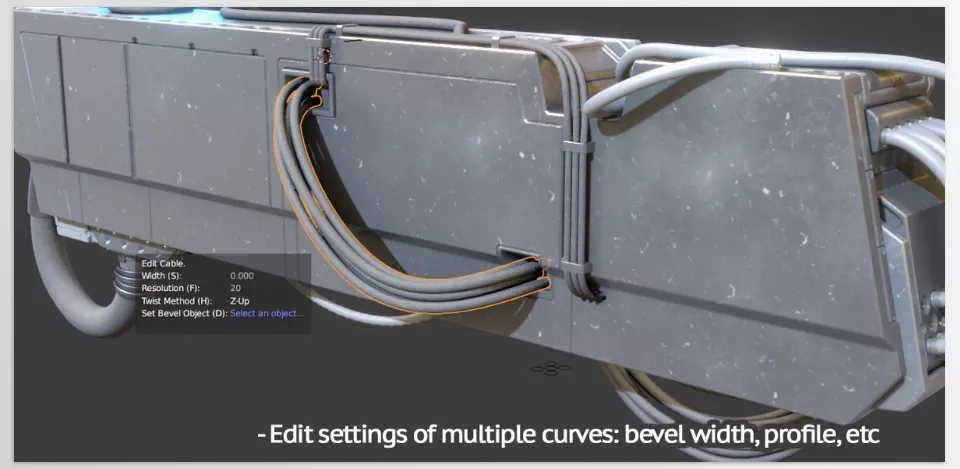
Select multiple cables at once to change width, profile, or cross-section shape. Add your custom geometry as a profile and apply it to all cables in seconds—full control without repetitive work.
✦ Future-Ready Design
In upcoming versions, Cablerator will integrate with Geometry Nodes and Asset Browser, allowing you to use cables as ready-made assets or control parameters through nodes.
✦ The Final Result
Scenes created with Cablerator are not just faster—they’re livelier, more natural, and more detailed. Whether your project is industrial, fantasy, sci-fi, or cinematic, this add-on helps make cables part of your design, not just a nuisance.
Cable Tricks for Professionals 💡
When dealing with cables, the difference between “good” and “real” lies in the details often overlooked. Here are some simple tricks to turn a static, artificial scene into a vivid and believable world.
- 🎯 1. Build Naturally with Randomness
Cables that are too straight and tidy look artificial. The real world is full of irregularities—add some randomness. Slightly move points or let physics simulation bend the cable naturally. Small changes create weight, tension, and realism. - 🧶 2. Ropes, the Forgotten Heroes
If your scene needs thick cables or twisted wires, use the Rope Structure. It allows you to create multi-strand cables twisted together, producing realistic ropes. Great for close-ups. - ⚙️ 3. Save Time with Group Editing
Adjusting the thickness and profile of each cable individually is tedious. Cablerator lets you edit multiple cables at once, changing width, profile, or insulation with a few clicks. - 🪄 4. Don’t Forget Lighting and Shadows
Even natural cables look lifeless without proper lighting. Add some specular for soft reflections, especially for rubber or plastic materials. Side lighting accentuates twists and details beautifully. - 🧠 5. Keep the Scene Organized
Many cables can clutter the viewport. Use layers, collections, or viewport display settings to stay organized and in control.
The most important tip? Treat cables as storytelling elements, not just technical details. When every cable has its own “life,” the scene becomes more vibrant and tangible.
Manage Cables Easily and Professionally! ⚡
Sometimes a small detail makes the difference between an ordinary scene and a cinematic shot—and cables are one of those details. They may seem simple, but when done right, they enhance realism and visual weight.
Cablerator takes this time-consuming, tedious task off your shoulders. No more drawing curves for hours or fighting complex simulations. Just define the path, tweak a few settings, and let the tool create natural, precise, and lifelike cables.
What does that mean? Well, it’s literally life-like moving, with three-dimensional depth added to your renders. Want your industrial wasteland to look messy? It can. Want your sci-fi space-age chamber to have floating cables? It can. You don’t have to worry about rigging things up – just about designing them. Use it once and you’ll never go back! 😉
Want to truly understand Blender tools? Our step-by-step guide will help you master each one and apply it in your projects effectively.



