


When You Need Handcrafted 3D Models and Paintings
Have you ever worked with Deep Paint? Have you ever wanted to create a 3D model that feels hand-painted and artistic, but no matter what you do, it ends up looking stiff and mechanical? Maybe you want to design a cartoon character or a detailed environment with an artistic vibe, but standard Blender tools—no matter how professional—can’t deliver that natural, handcrafted feel.
Your lines may be flat and lifeless, the colors uniform and rigid, or when adding cartoon details, you might spend hours without achieving the desired result. Even when creating a story-driven scene—like a forest or a cartoon street—every element must be modeled individually, and filling the scene with realistic details can be exhausting.
This is precisely when every digital artist wants the quickest, most versatile, most creatively freeing 3D modeler at their fingertips that will take lines and colors and, before you know it, make a detailed 3D model as if someone spent hours making it. A modeler that frees the hands of imagination without sacrificing the true-to-life artistic quality of a model, because the software gets in the way of what you want to do.

The Traditional Route: Blender Without Add-ons
You can do all of this in Blender without any add-ons:
- Grease Pencil to Mesh or Curve Conversion
Blender has standard tools to convert lines into meshes or curves. You can turn GP lines into real 3D models. - Applying Modifiers and Painting with Texture Paint
Modifiers like Subdivision, Solidify, or Bevel are available for shaping models, and Texture Paint allows you to paint directly on your models. - Manual Material Creation with Shader Nodes
Shader Nodes let you build complex materials, mix colors and textures, and even create cartoon or stylized effects.
But What Are the Limitations?
- Time-consuming: Every step must be done manually—from line conversion to applying modifiers and building materials. Creating something close to your vision can take hours.
- Complex settings: Custom brush creation, brush adjustment, and controlling Texture Paint details require patience and skill. Even for professionals, the process can be exhausting.
- Hard to achieve a real handcrafted feel: Blender has the basic tools, but creating a natural, artistic, and stylized look like real hand-done work is difficult and time-consuming. Lines may appear too uniform, and colors can look stiff.
In summary, Blender without add-ons has the necessary tools, but it demands a lot of time and effort, making it challenging to achieve a stylized, handcrafted result.
When Deep Paint Pro Comes In
With Deep Paint Pro, it’s like having a professional creative assistant by your side, removing all the limitations and complexities of the traditional route. This tool offers a complete set of features for creating hand-painted, stylized 3D models, allowing artists to focus on creativity and ideas instead of technical setup.
Key Features:
- GP to Mesh / Curve / Fill Mesh / Line Mesh
- Convert Grease Pencil lines to 3D models or curves with a single click
- Fill meshes or convert lines into editable meshes
- Easily create mesh lines and filled shapes without complex steps
- Quick Modifier
- Instantly apply modifiers like Subdivision, Solidify, or Bevel
- No long history or extra steps required
- Ideal for fast, organic modeling and hand-drawn style work
- Custom Grease Pencil Brushes
- Popup window with a set of custom brushes
- Includes various hand-drawn and cartoon-style brushes
- Quick selection and customization in the painting environment
- DPM (Deep Paint Material) & Outline
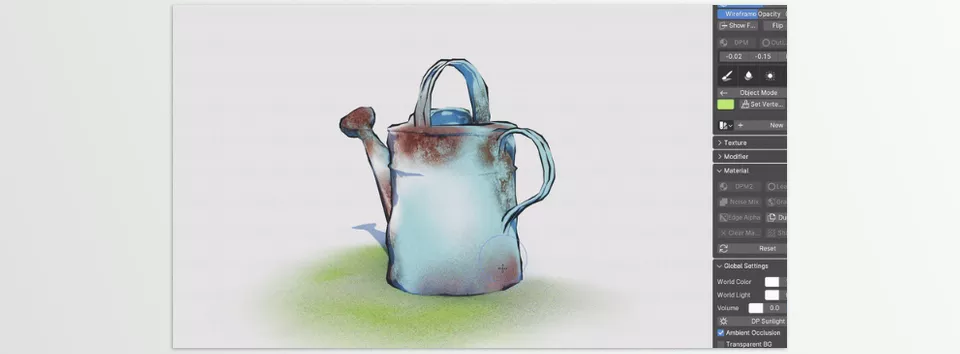
- Ready-made stylized materials based on Vertex Paint
- Cartoon outlines with a single click
- Perfect for illustrative and artistic styles
- Note: Works only with Eevee
- Custom Texture Paint Brushes
- Pre-made brushes for Texture Paint in watercolor, pastel, airbrush, etc.
- Combine with materials and vertex masks for natural effects
- Fast and easy for creating hand-painted textures
- Easy Access & Data Management in Paint Mode
- Quick access to data in Vertex Paint, Texture Paint, and Weight Paint
- Quickly add nodes to materials without opening Shader Editor
- Right-click to access all tools and data
- Material Presets
- Pre-set combinations like Noise Texture with Vertex Mask, no UV required
- Ready-made effects like Edge Blur, Shadow Only, and more
- Speeds up workflow and creates stylized effects without long setup
- Utility Tools
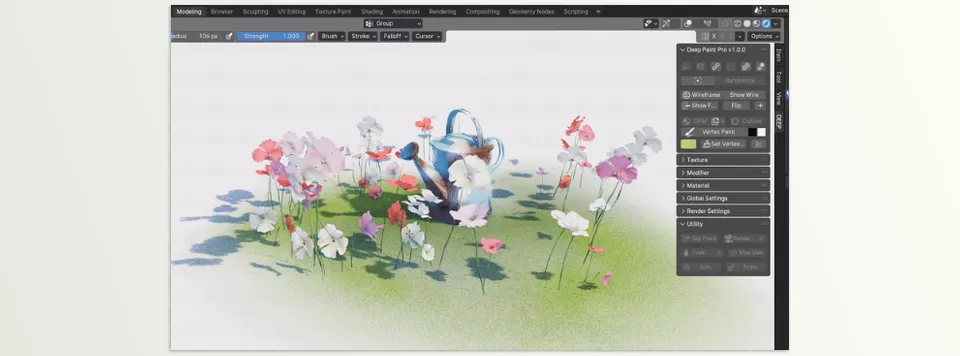
- Tree Gen & Vine Gen: Quickly generate trees, flowers, vines, and other environmental elements as instances
- Adjust and modify elements on surfaces or curves
- Camera Rig: Quickly create camera paths for animation and motion graphics
- Sky Paint: Useful tool for painting stylized skies and backgrounds
- Other tools to make the artistic workflow faster and more enjoyable
With Deep Paint Pro, you can create in minutes what would take hours otherwise. Even if you’re a professional Blender user, it makes the workflow faster, simpler, more creative, and gives your work a real handcrafted, artistic feel.
Pro Tips for the Best Results
To get the most out of Deep Paint Pro and make your cartoonish, hand-painted 3D work look truly alive and professional, here are some practical tips:
- Use Custom Brushes for a Real Painted Feel
- Use ready-made watercolor, pastel, and airbrush brushes in Grease Pencil and Texture Paint
- Combine brushes and adjust opacity/flow to create natural, hand-painted effects
- Experiment with brushes on small details like hair, leaves, or environmental lines for more charm
- Combine Grease Pencil with Ready-made Materials
- Mix GP lines with Material Presets to make colors and shadows appear more natural
- Using Vertex Paint and masks allows applying materials professionally without UVs
- Excellent for cartoon and illustrative scenes
- Quick Modifier for Fast Organic Modeling
- Use Quick Modifier when building organic models like trees, characters, or natural objects
- Instant application of modifiers speeds up design while maintaining a natural feel
- Utility Tools for Detailed Scenes
- Use Tree Gen and Vine Gen to fill scenes with plants, vines, and flowers without fatigue
- Quickly implement changes to the environment
- Camera Rig and Sky Paint help quickly set up camera paths and backgrounds, especially for animation or motion graphics
Additional Tips for Professional Results
- Keep GP and material layers organized for easier scene management
- Combine multiple Material Presets for appealing cartoonish shadow and light effects
- Adjust line thickness and use outlines at key points to reinforce the hand-drawn feel
- Deep Paint Pro’s short workflow lets you focus on creativity and scene storytelling rather than complex settings
Following these tips not only speeds up production but also preserves a professional, natural, and artistic look, making it suitable even for animation and motion graphics projects.
Why Deep Paint Pro Is Worth Trying
Deep Paint Pro is a tool that makes cartoonish, stylized 3D art fast, simple, and enjoyable. Instead of spending hours tweaking modifiers, Shader Nodes, and complex brushes, you can focus on creativity, design, and scene storytelling.
Even if you’re a skilled Blender user, Deep Paint Pro multiplies workflow speed and smoothness. Lines and colors appear more natural and hand-painted, materials and scenes become easily stylized, and the real feel of hand-done work comes through.
With this tool, techniques no longer limit you; your focus is on ideas, creativity, and the artistic impact of your work. Deep Paint Pro is like having a creative assistant by your side, offering speed, convenience, and high-quality cartoon and artistic results—all in one.
Take your Blender expertise to the next level with our complete guide on Blender Tools, where every tool is broken down in detail and accompanied by real project applications to help you learn both theory and practice.



