

What is Final Cut Pro?
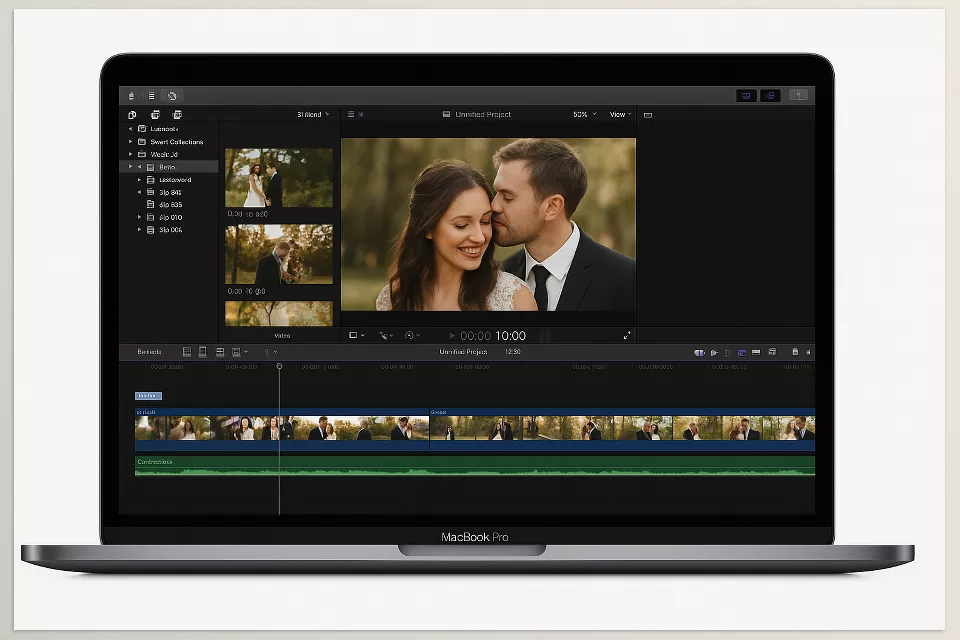
Final Cut Pro is Apple’s professional video editing software, available on MacOS. The key Final Cut Pro Tools include the essentials. It’s recognized as a fast program with built-in color correction tools and features, capable of rendering and editing higher resolution formats (4K and 8K) in real time. It’s a favorite among numerous professional editors.
If you’re looking for a similar program for Windows, the most widely used option is Adobe Premiere Pro, which offers nearly all the professional features of Final Cut Pro and works on both Windows and macOS.
Why Do We Need Add-ons in Final Cut Pro?
Although Final Cut Pro is a powerful and comprehensive program, the wide variety of user needs and project types means it can’t include every specialized tool or effect by default.
Moreover, each editor has a different workflow style. Add-ons help customize the software to match your specific needs and speed requirements. These Final Cut Pro Tools allow editors to access specialized functions beyond the base software.
Some advanced features—such as high-end color restoration, special effects, ready-made animations, or precise audio correction—may be limited or complex in the base software. Add-ons make these capabilities easily accessible and high quality.
In short, using add-ons in Final Cut Pro increases speed, quality, and variety, allowing editors to complete projects with the best possible results in less time.
What Types of Final Cut Pro Add-ons Exist?
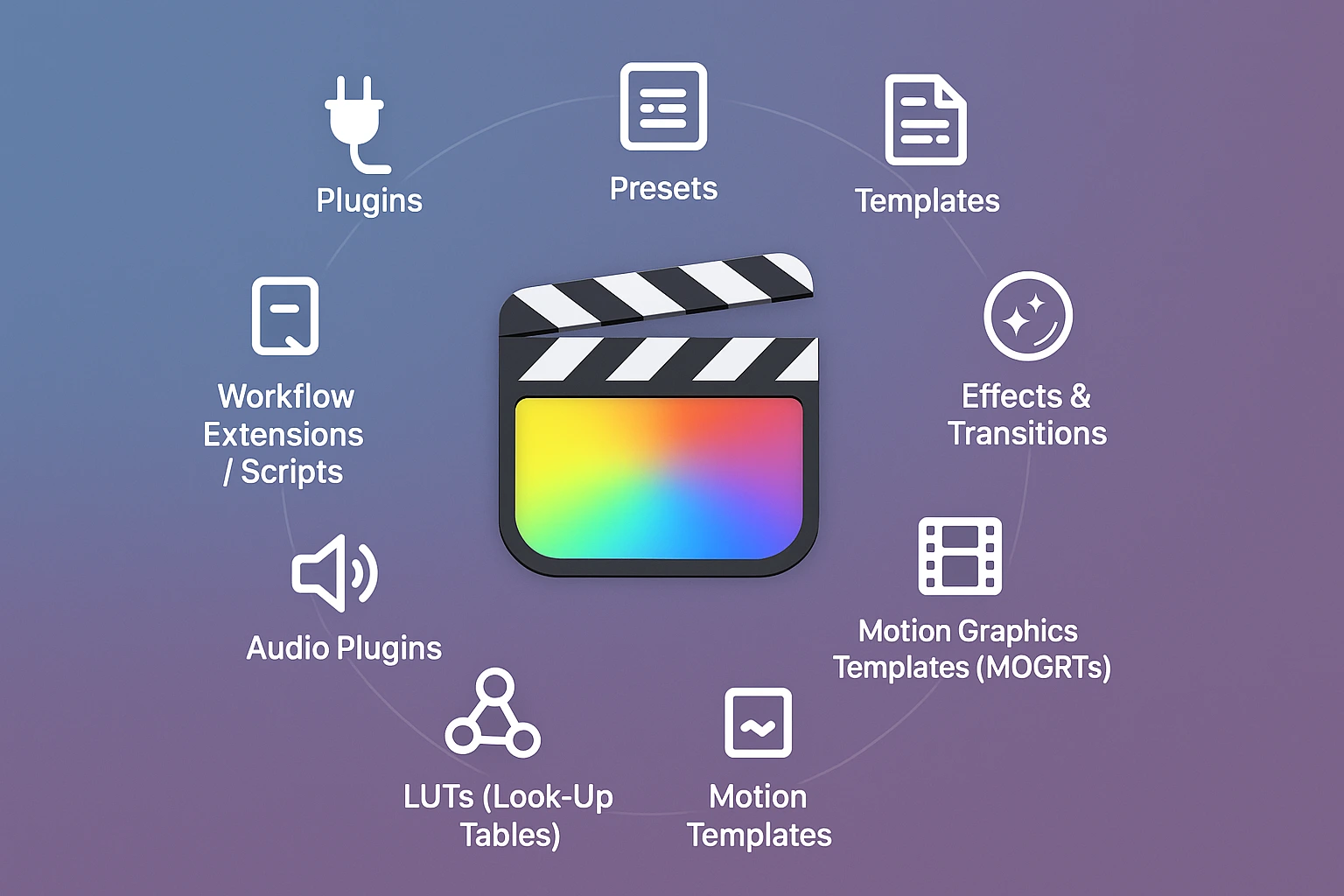
Understanding different Final Cut Pro Tools categories can help editors select the right solutions for their projects. Add-ons are external Final cut pro tools or resources that expand the capabilities of Final Cut Pro, making editing faster and more professional. They can be grouped into the following main categories:
1. Plugins
Plugins are one of the most popular Final Cut Pro Tools, adding specialized functions beyond default effects. Plugins are small, standalone programs or extensions that add new, specialized capabilities to Final Cut Pro. They go beyond the default effects and settings, offering advanced features such as professional color grading, noise reduction, motion tracking, and image stabilization.
Why they’re different:
Unlike presets or templates—which are essentially ready-made settings or project files—plugins often have their own user interface and add complex, specialized functions to the software.
Examples:
- Color Finale – advanced color correction
- Neat Video – noise reduction
- CoreMelt – a collection of effects and editing tools
Don’t miss this video showcasing the top 10 free Final Cut Pro plugins in 2025.
2. Presets
Presets are essential Final Cut Pro Tools that enable quick application of pre-configured settings. Presets are ready-made settings created by professional editors that can be applied with a single click. They may include color effects, lighting adjustments, transitions, or combinations of multiple settings.
Why they’re different:
Unlike plugins, which add new tools and functions, presets are simply pre-configured settings applied to Final Cut Pro’s built-in tools. They help you quickly apply a specific style or effect without spending time on manual adjustments.
Examples:
- Color correction presets (such as ready-to-use LUTs)
- Transition presets (pre-made movements between clips)
- Presets for audio or visual effects
If you’re looking to easily import presets in Final Cut Pro X, check out this guide.
3. Templates
Templates are ready-made files or projects containing graphic elements, animations, titles, intros, and pre-designed subtitles. They allow you to quickly create parts of a video without designing them from scratch.
Why they’re different:
Unlike plugins (which add new functions) or presets (which only provide ready settings), templates are complete design elements with structure and animation already built in. You simply replace the placeholder content (text, images, or video) with your own.
Examples:
- Title templates (animated text for section introductions)
- Intro templates (professional starting animations)
- Fully prepared project files ready for media replacement
If you need help installing Final Cut Pro X templates, this video has you covered.
4. Effects & Transitions
Effects are visual or audio changes applied to clips to alter their appearance or mood. Transitions are effects placed between two clips to create smooth, attractive scene changes.
Why they’re different:
Unlike plugins, effects and transitions are usually lighter, more direct modifications applied to clips. They focus on enhancing the video’s style and presentation.
Examples:
- Blur, color shifts, noise, or shake effects
- Transitions like fade, wipe, zoom, or complex glitch effects
This video shows an easy way to add effects and transitions to Final Cut Pro X.
5. Motion Graphics Templates (MOGRTs)
Motion Graphics Templates (MOGRTs) represent advanced Final Cut Pro Tools that combine animation and editable settings for flexible, professional video graphics. MOGRTs combine animation, motion graphics, and editable settings into one package. Originally created in Adobe After Effects, they can be used in Final Cut Pro via extensions or conversion tools.
Why they’re different:
Unlike regular templates, which are just pre-made projects or graphic elements, MOGRTs are professional animated templates with user-editable settings, offering more flexibility in customization. They allow you to change elements like text, shape, color, and animation easily without advanced animation knowledge.
Examples:
- Animated titles with editable text, colors, and sizes
- Dynamic introduction cards
- Moving graphic elements for explainer videos
How to use:
To use MOGRTs, you usually need to import them into Final Cut Pro (via extensions such as Adobe Premiere Bridge or template conversion). Once imported, you can easily change their various settings without opening animation software.
6. Motion Templates
Motion Templates are pre-built projects designed specifically by Apple for Final Cut Pro and its companion software, Motion. They include ready-made animations, titles, transitions, and effects optimized for Apple’s ecosystem.
Why they’re different:
Unlike general templates, Motion Templates are tailor-made for Final Cut Pro, offering deeper integration and smoother performance.
Examples:
- Titles animated in Motion
- Professional transitions and motion graphics
- Ready-to-use animated sequences
7. Generators
Definition & Use:
Generators in Final Cut Pro are tools that create images or video directly inside the software without external files. These images can be simple backgrounds (like solid colors or gradients), moving patterns (like lines, geometric shapes, or waves), or even dynamic graphic elements.
Why are they special?
Unlike most add-ons that are applied to existing video or projects, Generators can create visual content from scratch—even with an empty timeline. This means:
- No need to download pre-made videos or images
- Keeps the project file size smaller
- Immediate adjustments to color, size, or animation
Discover how to add and use generators in Final Cut Pro X in this quick video.
8. LUTs (Look-Up Tables)
Definition & Use:
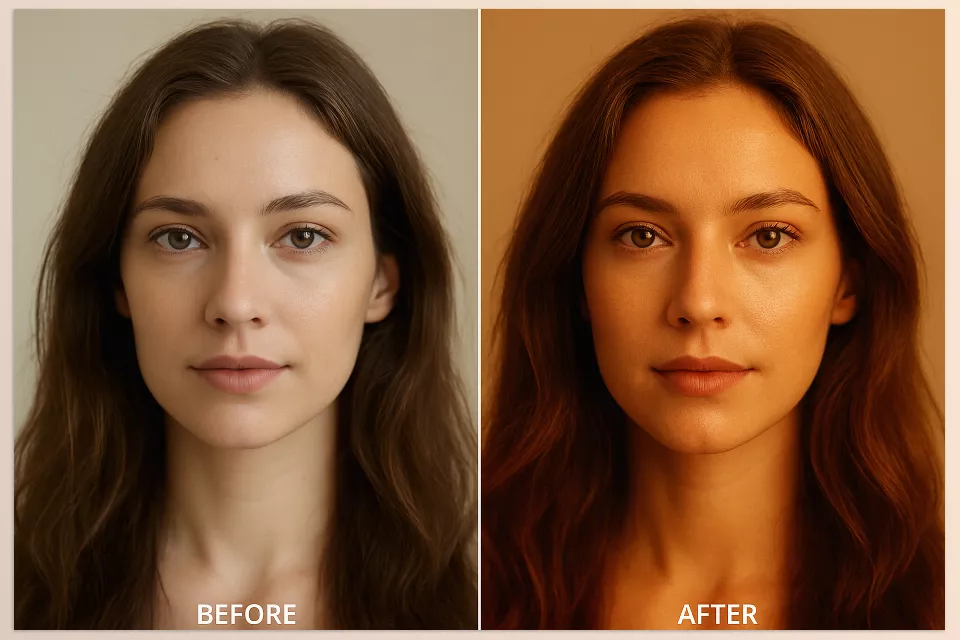
A LUT is a small file containing color transformation data that can quickly change the color, contrast, and tone of an image. When you apply a LUT to a video, Final Cut Pro maps the original colors to new ones based on this table. The result can be accurate color correction or a specific cinematic look.
Differences from other add-ons:
- Different from plugins, because plugins add new tools or features (e.g., Neat Video for noise removal), while a LUT is just a set of predefined color adjustments.
- Different from presets, because a preset might combine several effects and settings, but a LUT only adjusts color and tone.
Examples:
- Cinematic LUTs: Simulating the color grading of famous movies
- Camera LUTs: Matching colors between different cameras (e.g., Sony S-Log to Rec.709)
- Social media LUTs: Bright and vivid colors for Instagram or YouTube videos
Uses in projects:
- Matching colors between different shots in a project
- Giving a video a specific mood or style (e.g., commercials, wedding films, music videos)
- Saving time when grading large projects
9. Audio Plugins
Definition & Use:
Audio plugins are tools used to process and improve audio quality in Final Cut Pro. They can perform tasks such as noise removal, equalization (EQ), compression, adding reverb, or creating creative audio effects. Final Cut Pro has some built-in audio tools, but third-party plugins can significantly expand its capabilities.
Examples:
- 10 Game-Changing Categories Of Final Cut Pro Tools For Better Workflow
- Waves Vocal Rider: Automatically adjusting speaker volume
- FabFilter Pro-Q: Precise and advanced equalization for clearer sound
Uses in projects:
- Improving dialogue quality in interviews or films
- Removing environmental noise such as wind or crowd chatter
- Creating creative effects for music videos or trailers
- Preparing sound for cinema or online platforms
10. Workflow Extensions / Scripts
Definition & Use:
Workflow Extensions and scripts are tools designed to expand management and automation capabilities in Final Cut Pro. They focus more on the technical side and workflow speed rather than visuals or effects. They can be used for:
- Quickly importing media from cloud services
- Managing libraries and projects
- Sending timelines directly to other software
- Automating repetitive tasks
Examples:
- Frame.io Extension: For online review and approval of projects by clients or collaborators
- Transcriptive: Automatic speech-to-text conversion and subtitle creation
- PostLab: Project management and team collaboration on a shared library
Uses in projects:
- Simplifying project delivery to clients or broadcasters
- Reducing work time by automating repetitive tasks
- Better coordination between multiple software (e.g., sending outputs directly to audio or After Effects)
Conclusion
Final Cut Pro on its own is a powerful video editing software, but when it comes to complex projects and specific needs, it is the add-ons that turn it into a complete professional toolbox.
From plugins that bring technical capabilities and special effects, to presets and templates that multiply your speed, to LUTs for color grading, and Workflow Extensions that transform the entire production process—each category is designed to meet a specific need.
In fact, the inherent limitations of Final Cut Pro have led to the creation of this rich ecosystem. Professional editors, by combining these tools correctly, can both enhance output quality and significantly reduce production time.
Mastering the use of Final Cut Pro Tools categories is key to turning a simple project into a professional masterpiece.
If you’re also working with motion graphics, don’t miss our roundup of essential After Effects tools to speed up your workflow




