


Correct Lighting, Realistic Details: The Beginning
Have you explored the Afterglow Addon before? Surely, it has happened to you that your 3D models in Blender, with all their details, still appear underlit or flat. Even when using HDRI or default lighting, something is missing: real reflections, the depth of light, and that natural feel that makes the scene look alive and dynamic.
Maybe you’re rendering a product and want its curves and fine textures to be visible, or you have a cartoonish or realistic character, and the lighting needs to give the scene a specific mood. But when you only use simple, default lights, shadows appear flat, reflections look artificial, and model details get lost.
You can spend hours moving lights, adjusting their intensity and color, yet still not achieve that real, professional feel seen in studio examples.
So the question is: how can you control lighting so that all details are visible, shadows look natural, and the scene appears realistic, appealing, and engaging? How can we create lighting that adds depth, directs the viewer’s focus to key areas, and produces realistic reflections without hours of trial and error?
This is the exact challenge that most 3D designers and animators face, and it’s precisely where professional lighting tools like Afterglow Addon come into play.

Lighting and Its Applications
Good lighting goes beyond simply illuminating a scene. When light is placed correctly, its impact on your work becomes multidimensional and tangible:
- Model and material details stand out: Every curve, cavity, or texture on a model is affected by light and becomes more visible. For example, skin details on a character or the metallic texture of a product appear more realistic and appealing under proper lighting.
- Adds real depth and volume to the scene: Correct lighting ensures objects are perceived not just on a flat screen but convey real volume and distance. Soft shadows and precise reflections make models pop out and appear genuinely three-dimensional.
- Directs viewer focus to important areas: By placing lights smartly, you can guide the viewer’s eye to key elements, like a product logo, a character’s face, or artistic details on a sculpture.
For instance, when rendering a sculpture or art product, appropriate lighting makes curves, textures, and reflections appear natural. Light subtly emphasizes fine details, adding a stronger sense of realism. Even changing light color or intensity can shift the scene’s mood from formal and simple to warm, dramatic, or dynamic.
In essence, good lighting acts like a scene director: it guides each part of the scene, highlights important details, and enriches the viewer’s visual experience. Without proper lighting, even the best models and scenes can appear lifeless and flat.
Traditional Methods in Blender
Before professional lighting tools existed, designers and animators had to work with Blender’s limited options. These methods usually included:
- Using HDRI for general scene illumination: These pre-made images provide overall lighting and reflections.
- Standard Point, Spot, or Area lights: Simple lights to illuminate a scene or subject.
- Manual light adjustments via trial and error: Moving, changing intensity, and adjusting color repeatedly until the desired result is achieved.
However, each method has limitations:
- HDRIs often have limited light sources and cannot realistically simulate complex reflections and shadows in a room or large scene.
- Simple, standard lights make detailed control difficult. Even a small mistake can make critical areas underlit or flat.
- Manual light adjustment is time-consuming and exhausting. Achieving precise, dynamic lighting may require hours of trial and error.
- Ultimately, precise lighting for model and texture details becomes nearly impossible, and scenes often look lifeless or artificial.
In other words, traditional methods can light your scene, but they never provide full control, flexibility, and professional lighting effects that make a scene truly alive and dynamic. This is where professional tools like Afterglow Addon step in and overcome all limitations.
Introducing Afterglow Addon: Complete Freedom in Lighting
Afterglow Addon is a comprehensive professional lighting library for Blender that removes the limitations of traditional lighting, allowing you to illuminate scenes and models with full flexibility, detail, and realism.
Key Features and Applications:
- Studio Cages
Focused light cages are perfect for product or industrial model rendering. These lights create natural shadows and reflections, and you can hide or reveal parts of the light-emitting objects from the camera view. - Character Cages
A creative, colorful version of Studio Cages designed for characters or artistic works. Includes attractive lights, dynamic colors, and luminous elements that make characters stand out. - Studio Environments
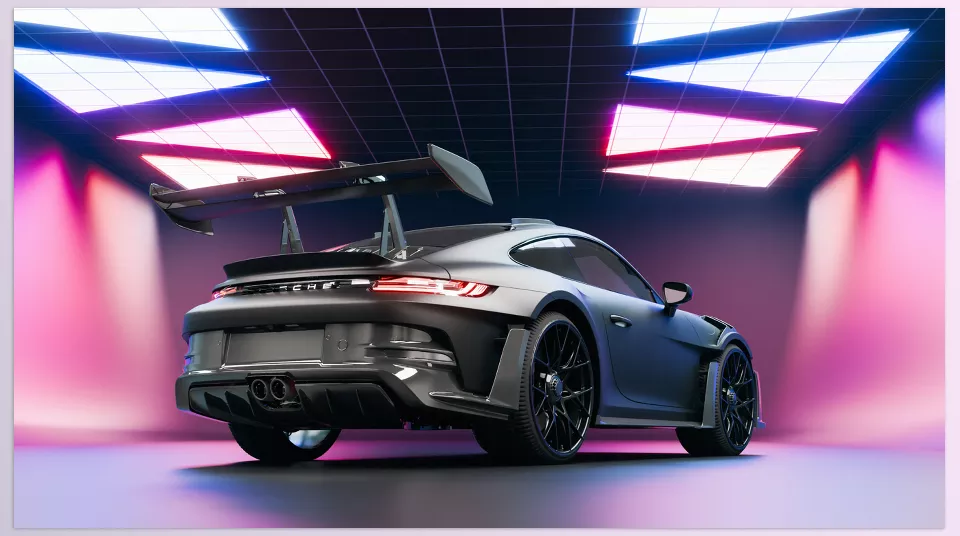
Pre-made lighting rooms with ceiling, wall, and floor lights, fully adjustable in color, intensity, and position. Add gradients, light images, and precise reflection control. Ideal for product, vehicle, sculpture, or advertising renders. - Light Shapes
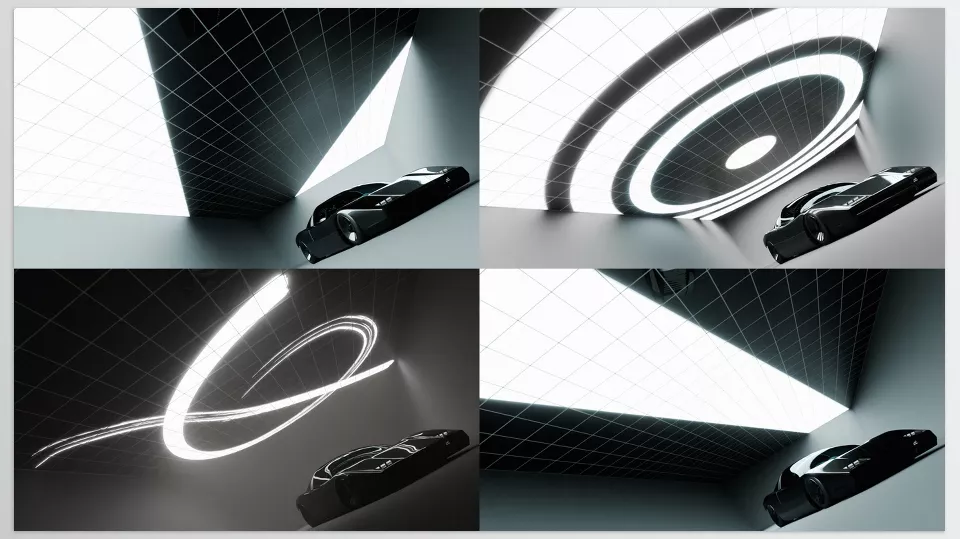
3D light shapes and 2D images that create complex lighting, artistic reflections, and special effects. Includes geometric lights for circular diffusion and light images for painterly and creative effects. - Display Cases
Product display shelves with standard, movable ceiling lighting for emphasizing model details, similar to real exhibitions. - Product Platforms
Ready-made product platforms, usable alone or with Studio Environments, with preset camera and lighting positions for quick, professional renders. - Custom Materials (Physical Definition Materials)
Materials that highlight model details, curves, and textures, specifically designed for studio renders and detailed 3D model or scan presentation. - Built-in HDRI Builder
Converts Afterglow lighting scenes into custom HDRIs for use in other projects, giving each scene a real light source with accurate reflections. - Full Customization
Every light, shape, environment, or material is fully adjustable: color, intensity, position, angle, shadows, and even light animation with keyframes. - Cycles Support
Afterglow is designed for the Cycles render engine, delivering physically accurate reflections, shadows, and soft, natural lighting.
Why Afterglow is Different
A car model or sculpture rendered with the Afterglow Addon displays details realistically and attractively, with soft shadows, precise reflections, and focused highlights. Without the Afterglow Addon, even the best models can appear flat, lifeless, and artificial.
Afterglow Addon not only simplifies scene lighting but also gives you complete freedom to control every detail, reflection, and shadow exactly as you want.
Professional Tips for Getting the Most Out of Afterglow
Using Afterglow Addon is more than just placing lights; with a few simple tips, your renders can reach a professional level:
- Use Studio and Character Cages for precise shadow control
Light cages allow you to control shadow placement and focus. Hide some light sources from the camera view to only affect the model, keeping the scene clean and professional. - Use Light Shapes for artistic effects and natural reflections
Employ 3D shapes and 2D light images to create complex reflections and dynamic lighting. For example, a geometric light can produce soft reflections on metals, while a painterly light image adds artistic flair. - Apply ready-made materials to highlight details
Afterglow’s custom materials emphasize curves, textures, and fine details. Even simple lighting appears clear and natural when these materials are applied. - Create custom HDRIs from scenes
One professional Afterglow feature allows you to convert your lighting scenes into HDRIs for other projects, providing a real light source with accurate shadows and reflections. - Combine light color and intensity to set mood
Don’t use lights just for illumination. Changing color, intensity, and position can shift the scene’s mood from formal to warm, dramatic, or dynamic. - Animate lights for dynamic effects
Every light is animatable. Changing position, color, or intensity on the timeline can create movement, shadow changes, and engaging dynamic effects. - Combine Studio Environments with Product Platforms
For product or sculpture renders, combine light cages and studio environments with product platforms to achieve precise lighting and reflections, producing professional scenes ready for fast rendering.
Following these tips, even simple models can gain a realistic, dynamic, and appealing look, clearly showcasing the impact of lighting on details and reflections.
Afterglow: The Key to Stunning Renders
Professional lighting is the true key to making 3D models and scenes shine. Even the best models and materials look flat and lifeless without proper lighting.
Afterglow Addon is the tool that removes these limitations, giving you full control over light, shadows, and reflections. Using light cages, studio environments, and custom materials, model details are highlighted, curves and textures appear more natural, and scenes gain a professional, realistic feel.
The greatest advantage of the Afterglow Addon is that you can achieve studio-quality renders with full flexibility without hours of trial and error. From product and sculpture displays to characters and artistic projects, the tool provides a simple, adjustable, and fully professional lighting experience.
In short, the Afterglow Addon not only adds light to your scene but also makes every project come alive, dynamic, and captivating. If you want your renders to truly shine, with details naturally and beautifully visible, using Afterglow will be a transformative and exciting experience in your workflow.
For anyone eager to become proficient in Blender, our Blender Tools guide offers a thorough breakdown of all tools, practical tips, and real project examples to ensure that you not only learn but can confidently apply your skills.



