

Modeling and Editing in Blender: Always a Challenge!
Have you ever worked with the Machin3tools? Even if we have years of experience with Blender, sometimes working on complex scenes feels like solving a long, exhausting puzzle. Selecting vertices and edges, extruding specific parts, precisely positioning objects, and aligning groups—all of it can take minutes or even hours.
You might find yourself thinking mid-project: “Why do I need so many clicks and mouse moves just to do something simple?” or “Isn’t there a smarter, faster, and more effortless way to edit these models?”
This feeling intensifies when working on large projects, where even a small mistake can disrupt the entire scene, forcing you to spend hours fixing it again. Even the most professional modelers sometimes get frustrated by Blender’s scattered menus and endless tools.
In fact, the real problem isn’t a lack of skill—it’s the time, repetition, and complexity of scene management. That’s where smart tools and shortcuts like Pie Menu can truly change a modeler’s life.

Smart Tools: Shortening the Path
Imagine being in the middle of a massive Blender project—dozens of meshes and object groups—and you need to edit just one precise part. The usual tools help, but every mouse movement and click adds time. That’s where smart tools come in—acting like a professional assistant.
A few real examples:
- Smart selection of vertices, edges, and faces: Instead of searching endlessly for a single edge, the tool recognizes and selects it for you.
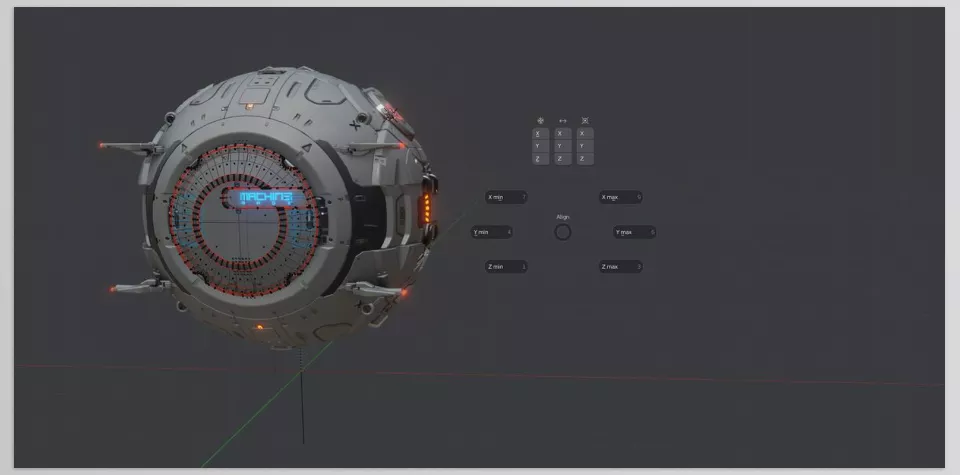
- Aligning and positioning objects with one move: No need to adjust each axis separately—everything aligns instantly and accurately.
- Managing groups and assets without losing track in Collections: When the scene gets crowded, the smart tool keeps everything within reach so you don’t waste time finding or organizing things.
And one of the most practical tools in this workflow is the Pie Menu:
- A circular, fast-access menu that appears around your cursor.
- Instead of long dropdown lists, simply move your mouse toward the desired option to select it.
- The Pie Menu can include Blender’s default tools or new smart tools that simplify editing and scene management.
By combining smart tools with the Pie Menu, you no longer need to focus on repetitive, time-consuming actions. Everything flows faster and smoother—letting you invest your energy and creativity into design and ideas.
When It’s Just You and Vanilla Blender…
Even if you’re a Blender master, without assistive tools or add-ons, many daily tasks can become time-consuming and tedious. For example:
- You need to manually find and move parts of meshes or objects using Select, Transform, Align, and Snap.
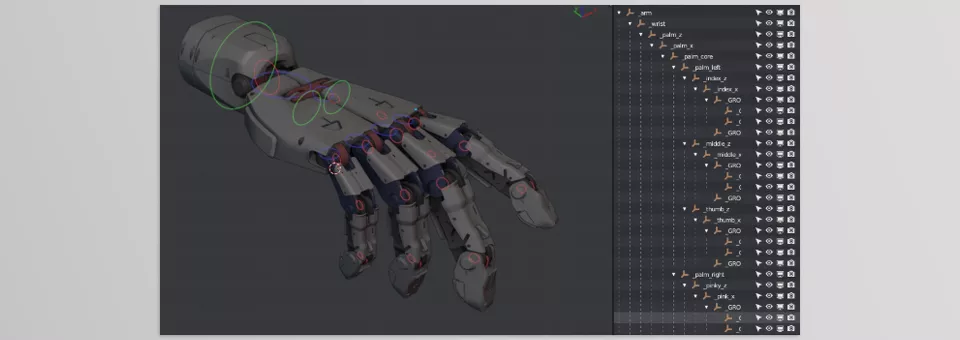
- Managing groups and Collections is a story in itself—once the scene gets crowded, losing objects or breaking hierarchy is very likely.
- Performing Extrude, Mirror, or precise object alignment without assistive tools requires extra steps and high precision, where even a small mistake can ruin everything.
⚠️ The main problem? All these actions are slow, repetitive, and prone to error, especially in large, complex projects. It’s like trying to assemble a thousand-piece puzzle in a storm—no matter how skilled you are, it’s still exhausting.
When MACHIN3tools Steps In
Imagine spending hours finding a specific edge, positioning objects, or organizing Collections. Now, imagine having a complete toolset that does all this automatically, accurately, and fast. This isn’t just modeling anymore—it’s total control over your scene and objects. And this tool is none other than Machin3tools.
What makes MACHIN3tools truly professional:
Smart, professional Pie Menus:
- All essential tools are gathered in one circular menu near your cursor.
- Even tools scattered across multiple panels become accessible with a single mouse move.
- You can combine complex actions—like selection, extrude, align, and material editing—in a single smooth flow, without getting lost in menus.
Smart and precise selection (Smart Vert / Edge / Face):
- Acts like an assistant that knows exactly what you’re looking for.
- Even in complex meshes, selections are quick and accurate.
- Minimizes time spent on selection, freeing you to focus on actual design.
Advanced and controlled editing (Edge Constrained Transform & Punch It Extrusion):
- Extrude, Transform, and edge modifications are accurate and fully controlled.
- Constraints and advanced settings ensure clean, structured results.
- Even major mesh changes happen without distorting nearby geometry.
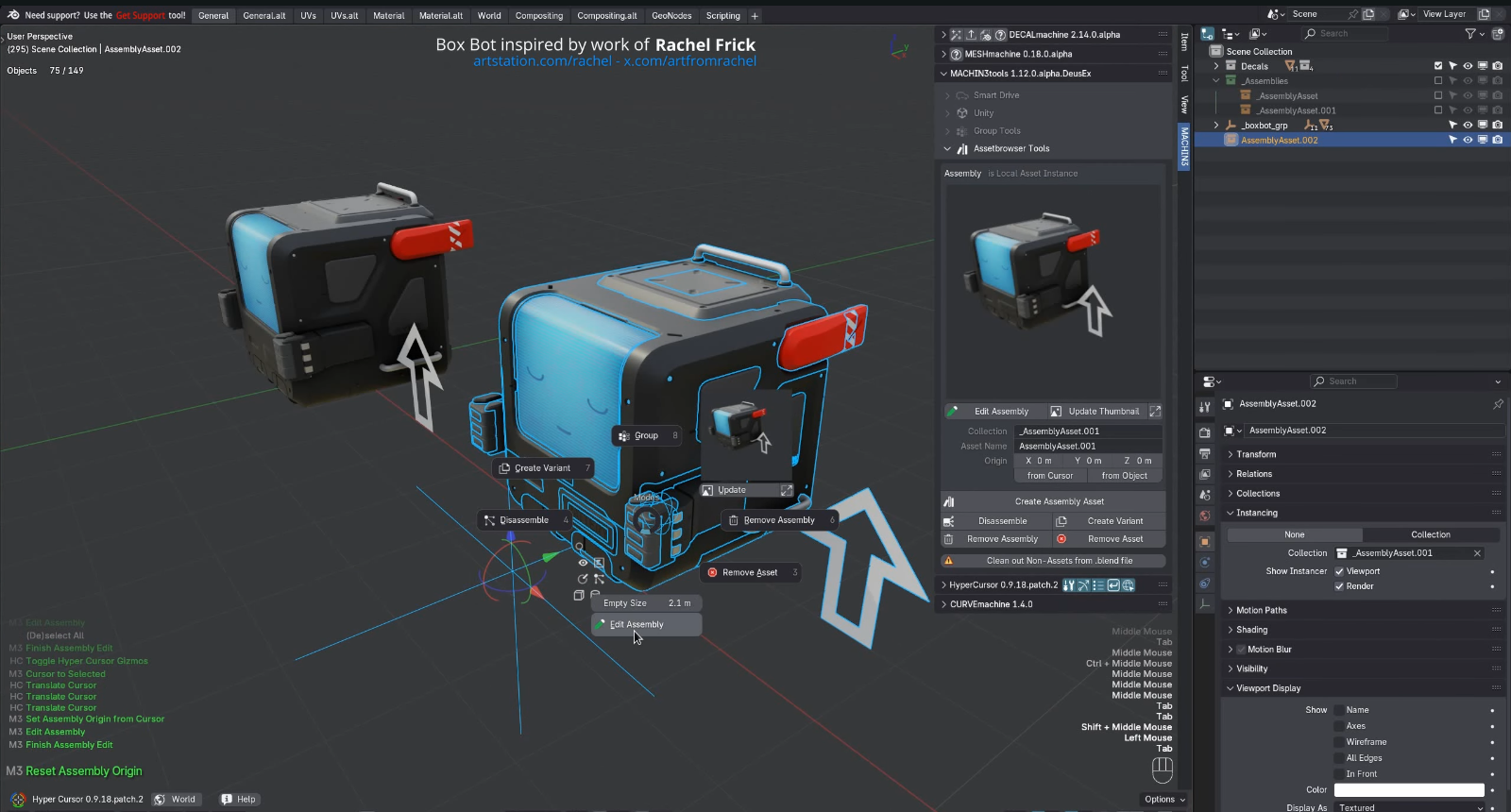
Group and asset management (Collections & Assembly Tools):
- All your objects and groups stay organized; no more lost or misplaced assets.
- Easily save and manage different Assembly or Asset versions.
- Change object positions, alignment, and orientation in Assemblies with just a few clicks.
Seamless workflow:
- Tools are designed to work in harmony—selection, extrusion, alignment, and assembly management all flow naturally.
- No need to jump between menus and panels—complex projects progress smoothly and fast.
- Your time is freed up for creative details, lighting, materials, and final design.
💡 Real-world example:
Imagine an architectural scene with dozens of detailed meshes. Before, selecting and extruding several walls or windows took hours of precise vertex hunting—with plenty of mistakes along the way.
Now, with Pie Menus and Smart Selection, everything’s done in seconds. Extrusions are accurate, the scene stays clean, and you’re ready to move forward.
✅ Result: Incredible speed, fewer errors, total control over your scene, and more freedom to focus on creativity.
How to Work More Professionally
Working with smart tools like Machin3tools is like having a professional assistant—but even the best assistant needs proper guidance. Here are a few simple but key techniques to boost your speed, accuracy, and quality:
- Use categorized Pie Menus efficiently:
Organize tools (modeling, Collections, alignment, etc.) into specific Pie Menus.
This ensures each tool you need is a single mouse move away.
Pro tip: Place your most-used tools in the easiest-to-reach Pie Menu slots for faster access. - Keep Smart Selection and Assembly Editing active on large projects:
When meshes or assemblies get complex, these tools act like smart filters—handling selection, extrusion, alignment, and movement automatically and safely. - Always create a backup before making changes:
Even with professional tools, unexpected results can happen.
Saving a simple backup of your scene before editing ensures stress-free experimentation—especially in complex projects. - Combine Pie Menu actions with keyboard shortcuts:
Many Pie Menu operations can be triggered with hotkeys for even faster workflows. - Use logical naming and organization:
In large projects, even smart tools can get confusing without proper naming.
Keep Objects, Collections, and Assemblies clearly labeled for easy tracking and editing.
💡 Quick Summary:
Following these tips makes your work not only faster but also safer and more professional. You stay focused on creativity—not tool-hunting, fixing errors, or organizing messy scenes.
Why MACHIN3tools Is Worth Trying
Working in Blender can sometimes feel like running through an obstacle course—selecting vertices, extruding, aligning objects, and managing scenes can eat up hours and drain your energy. Even for professionals, errors are common, and momentum is lost.
A smart tool like Machin3tools transforms that struggle into a smooth and efficient workflow. With Pie Menus and Smart Selection, you no longer have to scroll through endless menus or click through layers of options. Everything—from precise vertex selection to extrusion and scene management—takes just a few mouse moves.
Large projects are no longer daunting when you have precision over your set and limited mistakes. This tool not only renders you quick and precise but also helps render the modeling process more engaging and exhilarating. I mean, honestly, I get so used to it that sometimes going back and working without it is just painstakingly slow and annoying.
Whether you’re a beginner or looking to refine your Blender skills, our guide about Blender Tools walks you through every tool with practical examples that help you gain true mastery.



