

When Layers Are Not Always in Place…
Are you familiar with the Cell Fluids? If you’ve ever had a motion graphics project, you’ve probably encountered this challenge – layers are not where they’re supposed to be! Text moves, images without warning scale, and logos are not in the spot you thought they were placed.
And when you decide to change the scene size or aspect ratio, everything falls apart; layers drift apart, the layout breaks, and you could spend hours just trying to get everything back in order.
Imagine creating an advertising project or an intro: texts must align with logos, the background image must always stay in the right place, and any change in the scene shouldn’t ruin the entire project. Without the right tools, this task is like assembling a puzzle blindfolded—every small piece might go in the wrong place and nullify all your efforts.
This is exactly where motion graphic designers look for a solution to keep layers properly aligned and proportional, even as projects become complex or sudden changes in scene size and dimensions occur.

What Is a Composition and Why Is It Important?
Let’s keep it simple: in After Effects, there’s something called a Composition, which you can think of as the stage or scene where everything is placed. Texts, images, logos, and shapes all sit on this stage and can be animated or given effects.
Simply put: a composition is the scene where your project takes place.
A few examples to make it clear:
- When you place a logo, a text, and an image consecutively, the composition ensures everything is correctly positioned and sized.
- You can have multiple layers together, and everything stays organized and aligned.
- As the project grows, nested compositions allow you to divide and control elements efficiently.
- If you want a project for both mobile and desktop, compositions help layouts adapt automatically to changes in screen size.
Why is this important?
Without compositions, even the simplest projects can quickly become messy and chaotic, consuming a lot of time.
For example, imagine creating a digital greeting card: the greeting text, background image, and logo all need to be perfectly aligned. The composition acts as the main canvas, and when you have smart tools like The Positioner, everything is automatically and effortlessly arranged.
What Does 2.5D Simulation Even Mean?
Before diving into the main topic, here’s an important point: CellFluids doesn’t aim to create fully 3D realistic water.
Instead, it uses a clever and lightweight method that produces a fast and acceptable result without overloading your system or making you wait hours for a simulation.
How does it work?
- Creates a flat surface
- Applies displacement on it
- Adds smooth and natural movement
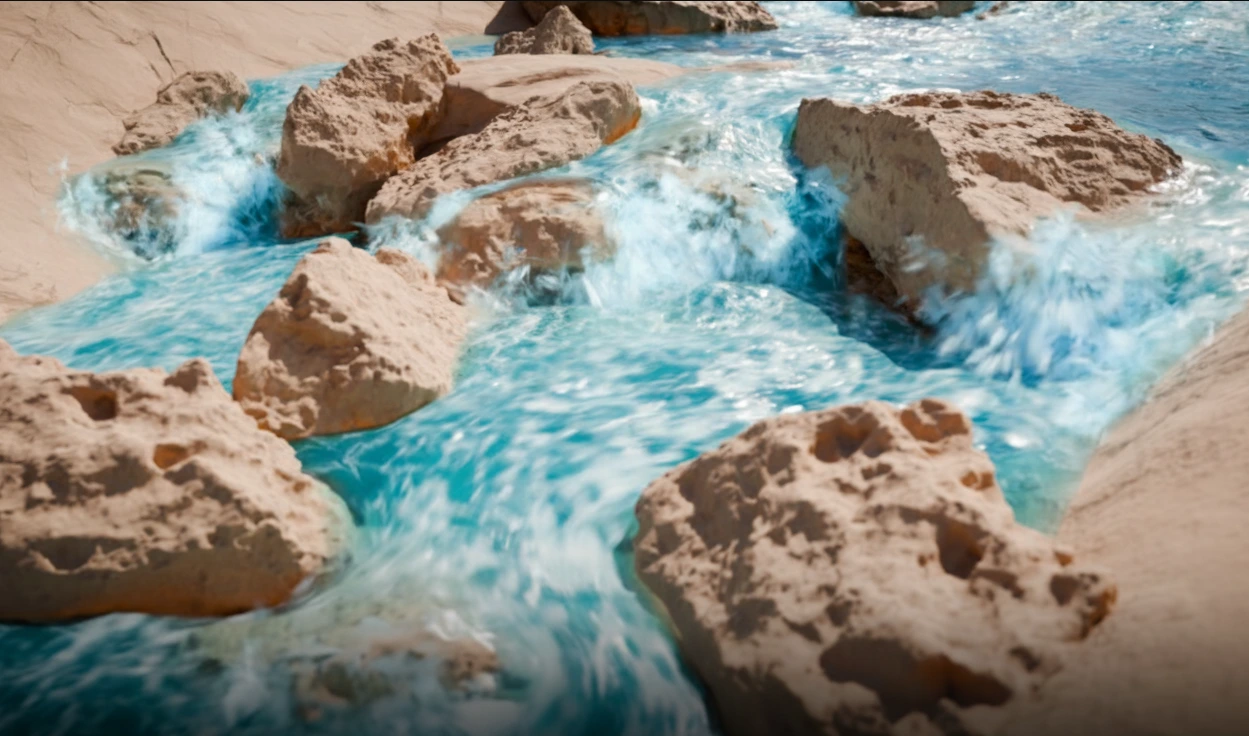
The result? Water that looks convincing for most projects—neither fully 2D nor fully 3D, hence the term 2.5D simulation.
When Does This Method Work Best?
This approach is perfect for scenes that don’t require realistic, complex water flow but still need a natural and appealing water effect. Examples include:
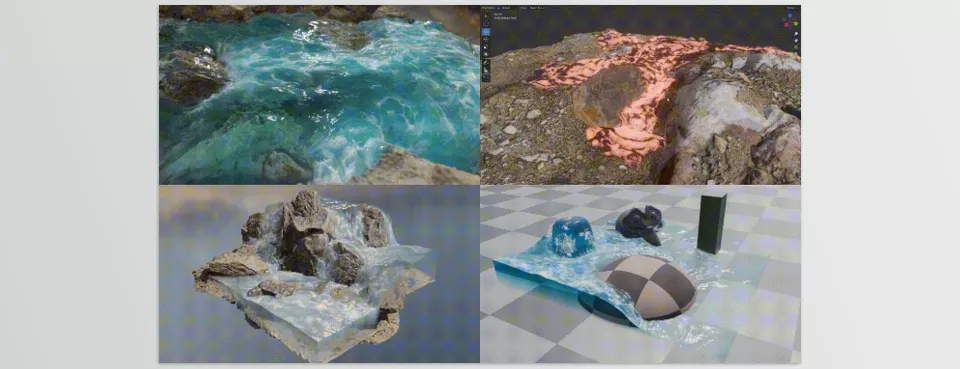
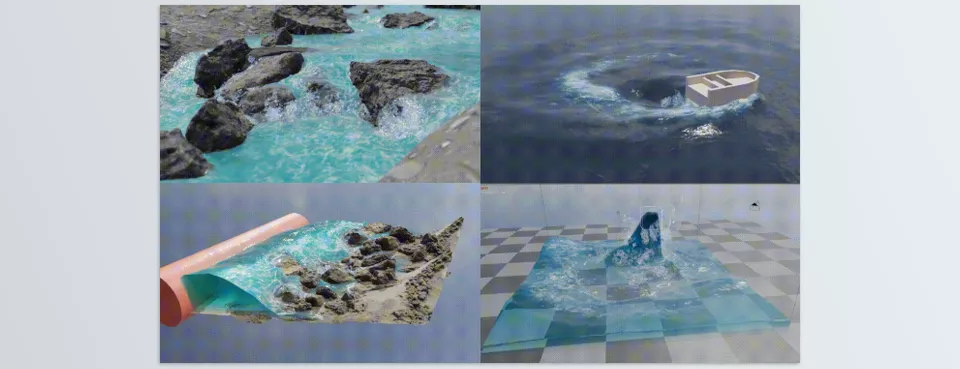
- Rivers in a forest environment
- Coastal water for cinematic shots
- Lava in a fantasy scene
- Oil or watercolor flow for motion graphics
- Quick wave effects for lightweight or advertising animations
💡 In short: wherever real water isn’t necessary, but natural-looking fluid is needed, 2.5D is the best choice.
What Can Blender Do Without Tools?
Let’s be realistic: Blender has its own fluid simulation tools, but each comes with limitations and complexity. You can create water, but usually, it either takes too long or doesn’t produce the desired results.
- Mantaflow – Accurate but Heavy
- Highly realistic and physics-based simulation
- Drawback: even a simple river simulation can take hours or more
- Practically unusable for quick motion graphics or game projects
- Ocean Modifier – Waves, Not Flow
- Excellent for creating sea surfaces and wave patterns
- Water flow can’t be directed; you can’t control river paths or lava movement
- Only suitable for large open environments
- Manual Displacement – Flexible but Time-Consuming
- You can create water effects using node and texture combinations
- Requires experience and lots of time
- Results often need constant adjustments and are unpredictable
💡 Professional Summary:
Blender offers basic fluid and water tools, but they are often slow, complex, and difficult to control. This is where auxiliary tools like Cell Fluids make a difference: fast, controllable, lightweight simulation that provides natural, usable results for motion graphics, cinema, and game projects.
Introducing Cell Fluids – Everything You Need for Fluid Simulation
Cell Fluids is a Geometry Nodes tool focused on fluid simulation with speed, lightness, and high control. Unlike traditional simulators, it doesn’t require long baking or a powerful system, and nearly everything can be seen and adjusted in real time. This tool is perfect for motion graphics, animation, and game development.
- Real-Time and Fast Simulation
- Fully interactive water flow is visible instantly
- No long baking required; parameters can be adjusted on the fly
- Lightweight and performs well even in heavy scenes
- Flow Path Control with Curves
- Add Curve objects to guide water flow
- Create complex and custom paths for rivers, lava, or oil
- Flow moves smoothly and naturally on surfaces
- Paths can be edited at any time without rebuilding the simulation
- Flowmap and Game Engine Output
- Bake the flow for use in game projects
- Generate standard Flowmaps for Unity (2022+) and Unreal Engine (5.3.2+)
- Direct export to game engines without plugins
- Ideal for games and real-time experience in-game environments
- Ocean Integration
- Seamlessly blend water edges with Ocean Modifier
- Suitable for beaches, ponds, or open environments
- Note: Ocean waves are only bump maps, not real geometry, ideal for calm waters
- Ready-to-Use Materials
- Transparent and realistic water
- Lava or molten materials
- Thick oil or stylized liquids
- Juice or colored beverages
- Stylized materials suitable for motion graphics
- Customizable and quickly applicable without complexity
- Simulation Parameters and Detail Control
- Resolution Control: adjust resolution for more detail or large-scale simulation
- Time Scale: control flow speed for faster or slower simulation
- Noise Displacement: add small waves and splashes for realism
- Foam: add foam and bubbles for realistic flow
- Dynamic Grounds / Ground Collection: animate ground to create obstacles or alter water paths
- Post Subdivision: add subdivision for more surface detail
- Baking and Storage
- Bake any water state to a fixed mesh
- Save Flowmap for game engine use
- Revert baked Flowmap for editing flow
- Export to various projects without complex adjustments
- Compatibility and Limitations
- Works with Blender 4.1 and above (v1.x: Blender 3.6+)
- Compatible with Eevee and Cycles
- Limitations:
- Not a full 3D or multi-layered simulation
- Enclosed environments, like caves or pipes, may cause issues
- Flows aren’t particle-based, not fully physics-based
- Geometry with sharp edges may poke through the water
- Viscosity not supported
At a glance, Cell Fluids is a lightweight, fast, fully controllable fluid simulator that shows everything in real time, guides flow with Curves, and provides outputs ready for games or animations. With ready-made materials, foam, noise, and detail controls, you can create water, lava, or any liquid naturally—without the hassle of Mantaflow or Ocean Modifier. It’s a tool that boosts your project speed and control while delivering visually appealing results.
Golden Tips for Better Cell Fluids Use
A few simple but important tips can greatly enhance speed and quality:
💡 Resolution
- Adjust resolution according to scene scale:
- Larger water → lower resolution (resource-saving)
- Smaller water or fine details → higher resolution
- Ensures simulation stays lightweight yet detailed
💡 Simulation Speed (Time Scale)
- Increasing the Time Scale makes the water flow faster
- Perfect for quick animations or dynamic movements without changing the main path
💡 Ground Geometry
- Avoid sharp edges or meshes, as displacement may poke through the water
- Smooth or bevel edges if necessary for smoother flow
💡 Foam and Surface Details
- Add some foam for more attractive and natural rendering
- Foam and bubbles make the flow appear lively and realistic
💡 Curve Management
- Keep the number of Curves limited; usually 2–3 is enough
- Too many curves complicate flow control
- Focus on the main paths for the best results
Following these simple tips allows for fast, lightweight, and natural simulations without overloading your system or creating artificial results.
A Small Tool That Really Saves Time
If your project is lightweight or you’re short on time and want to quickly create natural, appealing water flow, Cell Fluids is one of those tools you won’t want to work without once you try it. You can see the flow in real time, control its path, and get a satisfactory result effortlessly.
Cell Fluids doesn’t claim to be the best simulator in the world and isn’t meant to replace Mantaflow. But wherever speed, lightness, and easy control matter, it truly shines. For motion graphics, short animations, cinematic scenes, or even games, it can make your project faster and smoother.
Ultimately, the choice is yours—but trying it costs nothing. Once you see how easily you can create and adjust water flow, you’ll likely be amazed at how much time it saves without compromising quality.
If you’ve enjoyed learning Blender so far and want to take a deeper dive, our ultimate Blender Tools guide explains every feature, offers expert tips, and shows you exactly how to apply them in meaningful ways.



