

The Temptation of 3D in After Effects
Are you familiar with using the Super 3D Plugin by aescripts? If you’ve worked with After Effects, you’ve probably been tempted at least once to step into the world of 3D. From the outside, everything looks incredibly appealing and exciting: a few simple objects, a camera moving through space, some lighting, and, ultimately, a cinematic render that is truly eye-catching. This surface-level impression makes it seem like working with 3D in After Effects will be a smooth and enjoyable experience.
But soon after getting started, you gradually realize that the story is a bit more complicated than that. Importing 3D models, managing files, integrating them into a scene, and then adjusting materials and lighting are all details that often take more time than the actual design work itself. And if you want to make even a small change, you may have to repeat several steps.
Eventually, you may find yourself spending most of your time in After Effects solving technical issues and working around how the software handles 3D features 🎯. At this point, it’s very likely that you’ll find yourself thinking to yourself: “I wish working with 3D within After Effects were a little smoother and less complicated.”

What Does 3D in Motion Graphics Actually Mean? 🤔
Three-dimensional features in After Effects allow two-dimensional elements to appear as if they have depth and volume. As a result, the elements appear to move realistically within the project without requiring any additional graphical elements to simulate that movement.
For example, when you see a logo rotating in space, light changing across its surface, and a camera passing by it, that’s where 3D is doing its job ✨
This capability is commonly used in promotional videos, motion branding, cinematic intros, and even simpler design projects.
What Happens Without Additional Tools? 🧱
For those who wish to incorporate three-dimensional elements into their projects and have not opted for any third-party tools, there are a few ways to create such features in After Effects. One way is to use After Effects’ built-in 3D features, such as 3D layers, cameras, and lights. Each of these options plays a role in creating the perception of three-dimensional visuals within the software. However, there are some limitations to the built-in features.
Another method for creating 3D elements in After Effects projects is to use external tools and applications. For instance, one popular choice is to use Cinema 4D Lite, a program bundled with After Effects. In addition to this application, another popular tool is Element 3D, a plugin that lets you import realistic 3D models into After Effects projects. While each of these tools and applications helps bridge the gap between 2D and 3D designs within After Effects projects, they do not provide a fully unified editing experience for users.
In general, the most common approaches are:
- Using After Effects’ built-in 3D Layers
- Working with Cameras and Lights to create depth
- Using Cinema 4D Lite for simpler modeling workflows
- Using plugins such as Element 3D to import models
⚠️ But Here’s Where the Problem Begins…
Although each of these methods offers a solution, they often make the 3D workflow more complicated and layered. Many times, even a simple task requires switching between multiple tools, disrupting your creative flow. Even small adjustments may require reconfiguring several parts of the project, slowing the overall process.
In the end, you often find yourself spending more time coordinating tools, managing files, and solving technical issues than actually focusing on design and creativity 🎨
What Exactly Does Super 3D Do? ⚡
This is where Super 3D comes in 😎
Super 3D is a plugin for After Effects whose primary goal is to transform the 3D workflow from a complex, fragmented, multi-step process into a simpler, faster, and easier-to-control one. The important part is that everything happens directly in After Effects, so there’s no need to switch between applications or rely on separate tools at every stage of the process.
Put simply, Super 3D helps turn the process of building a 3D scene—from what is usually a workflow involving multiple tools, formats, and steps—into a unified environment. From the moment you import a model until it’s ready for animation, everything is managed in one place. As a result, the workflow becomes faster while keeping your focus on design.
📦 Importing 3D Models
One of the most important aspects of Super 3D is its model import system. Under normal circumstances, importing 3D models into After Effects has always been a challenge, from handling file formats to correctly transferring material information and model structures. Here, however, the process becomes much simpler.
With support for GLB and GLTF formats, you can easily import ready-made models into your project and start using them in your scene immediately. Instead of getting caught up in technical steps and file conversions, you can go straight into design and composition. For motion designers, this is extremely valuable because it significantly speeds up idea testing and makes it easier to switch between different concepts.
🧊 Built-In Object Library
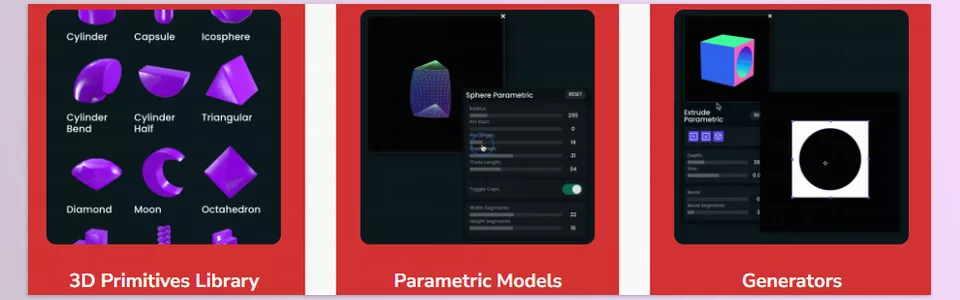
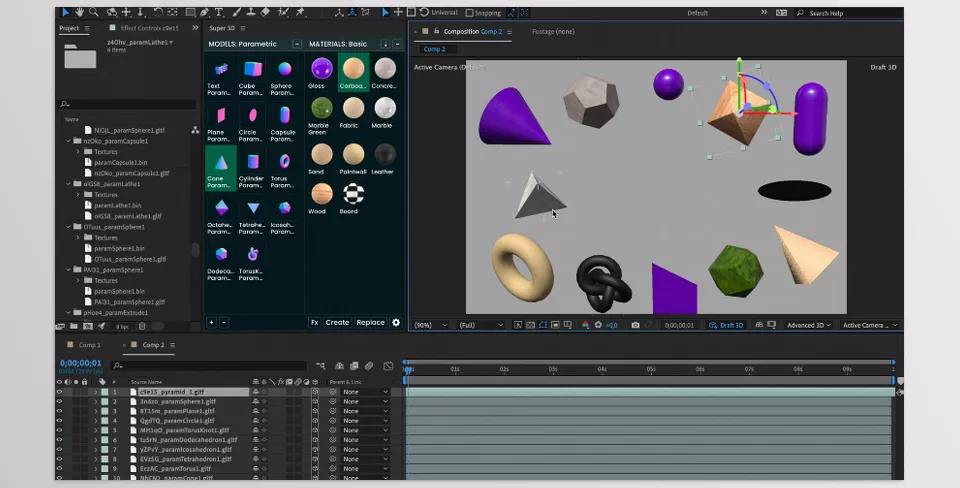
This feature is perfect for situations where you want to quickly build a scene or test an idea without creating models from scratch. Super 3D includes a collection of basic ready-made objects such as cubes, spheres, cylinders, and other simple forms that allow you to rapidly establish the foundation of a scene.
What’s important is that these objects aren’t only useful for starting out. In many real-world projects, these same simple forms are used and then transformed into professional elements through lighting and texturing. As a result, this library is more than just a collection of basic assets—it’s a tool for accelerating the design process.
🧬 Converting Shapes to 3D
This is one of the most exciting features of Super 3D 😍
It allows you to create real 3D models directly from the Shape Layers you build in After Effects. In other words, there’s no need to import models from external sources or search for ready-made assets. The designs you’ve already created can become fully dimensional objects.
This feature is especially useful for motion graphics, as designers often begin their work with Shapes. Now, those same Shapes can move directly into a 3D environment and gain depth without disrupting the workflow. The result is a completely seamless design process that flows naturally from 2D to 3D without feeling like you’re switching between two separate worlds.
🎨 Texture and Material Control
When it comes to materials, Super 3D offers greater control over your objects’ appearance. This goes far beyond simply changing colors—you can work with details such as surface textures, reflection intensity, texture orientation, and even the overall feel of the model’s surface.
This is especially important in real-world projects because the final look of a 3D scene depends not only on the model itself but also on its materials and lighting. Having this level of control directly inside After Effects makes the workflow faster and more predictable since you don’t need to rely on external tools for every small adjustment.
🔁 Replacing Models Without Breaking Animations
This is one of those features whose value becomes crystal clear once you start working on larger projects 😄
Imagine you’ve already created animations, camera movements, and lighting setups around a 3D model. Under normal circumstances, replacing that model could easily disrupt the entire scene, forcing you to rebuild or readjust portions of your work.
With Super 3D, however, you can replace a model without losing the animation structure or scene settings. This gives you far more creative freedom because you can explore visual alternatives and test different versions without worrying about breaking the project.
🎬 A Real-World Example
Imagine you’re designing a promotional video for a technology brand. Normally, you’d need to import a 3D model from external software into After Effects, spend time adjusting materials, lighting, and placement, and, if you decided to change the model halfway through the project, you’d likely need to repeat a significant portion of the setup.
With Super 3D, the workflow becomes much simpler. You import the model directly into After Effects, adjust its appearance and materials within the same environment, and quickly move on to animation and lighting. As a result, less time is spent on technical tasks, and more attention can be devoted to design and creativity ✨
A Few Professional Tips to Improve Your Work 🧠
When working with 3D in After Effects, having the right tools isn’t enough. What truly makes your output look professional is how you use those tools. Here are a few simple but important tips that can significantly elevate the quality of your work.
Start with Simple Models
If you’re building a new scene, it’s usually best to begin with simple models and gradually move toward more complex details. This helps you establish the overall structure of the scene before diving into finer adjustments. Many complex projects run into problems because they start with heavy models from the outset.
Don’t Underestimate Lighting
Lighting is almost everything in 3D 💡
Even the simplest models can look highly professional when they’re lit correctly. The opposite is also true: a great model with poor lighting can appear flat and uninspiring. That’s why it’s worth dedicating sufficient time to lighting setup and treating it as a critical part of the design process.
Use Shape to 3D Strategically
The Shape-to-3D feature isn’t just for experimentation—it can become a major part of your design workflow. When used effectively, it allows you to create custom, unique elements that align perfectly with your project’s style. Instead of relying entirely on ready-made assets, you’re actively creating part of the design yourself.
Complete Your Scene Before Animating
One common mistake is trying to build the scene while animating it. A better approach is to establish everything first: camera placement, models, lighting, and the overall composition. Once the foundation is ready, animation becomes much smoother and easier to control.
Keep an Eye on Project Performance
3D projects can become heavy very quickly 😄 especially when working with numerous models or high-resolution textures. It’s always a good idea to optimize your scene to maintain a responsive workflow and avoid performance issues during editing or rendering in After Effects.
When you follow these simple practices, your work doesn’t just improve because of better tools—it improves in terms of overall feel and final quality. More importantly, you gain greater control over the project and encounter fewer surprises during production 🎯
When a Tool Shortens the Path 🎯
Working with 3D has always been one of the most exciting aspects of motion graphics because it allows you to move beyond flat imagery and add depth, space, and a more realistic feel to your visuals. But alongside that appeal, the reality is that this same area can also be one of the most time-consuming and complex parts of the workflow. Especially when you’re trying to handle everything using only After Effects’ built-in tools or by relying on several separate applications.
This is where tools like Super 3D effectively serve as a professional shortcut. Instead of dealing with model imports, scattered settings, file synchronization, and constantly switching between tools, everything comes together in a single environment, making the workflow much smoother. The result is that your mental energy is spent on design, composition, and idea generation rather than on the technical challenges that truly matter.
Ultimately, this is where the difference between a smooth 3D experience in After Effects lies: either you spend your time building the path to your desired project, or you focus on the project itself. When the right tool is chosen, you can devote your time and energy to your project’s creative aspects.
The easiest way to improve within After Effects is to learn more tools that will smooth your editing process. For more information about editing in After Effects, check out our guide on After Effects Tools now!